Team Access Logs
Retrieves workspace access logs from Slack, providing visibility into user login activity and session information.
Sync Type: Incremental
Overview
The Slack Team Access Logs input collects comprehensive access log data from your workspace, capturing user authentication events, session details, and geographic information. This data is crucial for security monitoring, detecting anomalous access patterns, compliance reporting, and understanding user behavior across your organization.
Prerequisites
- A Slack workspace with API access
- Admin or Owner permissions to create and install apps
- User OAuth Token with the
adminscope
OAuth Token Setup
To access Slack Team Access Logs, you need to create a Slack app with the appropriate OAuth scopes.
1. Create a Slack App
-
Navigate to Slack API
- Go to https://api.slack.com/apps
- Sign in with your Slack account
-
Create New App
- Click Create New App
- Choose From scratch
- Provide an app name (e.g., "Access Logs Collector")
- Select your Slack workspace
- Click Create App
- You will be redirected to the "Basic Information" page
2. Grant Permissions
-
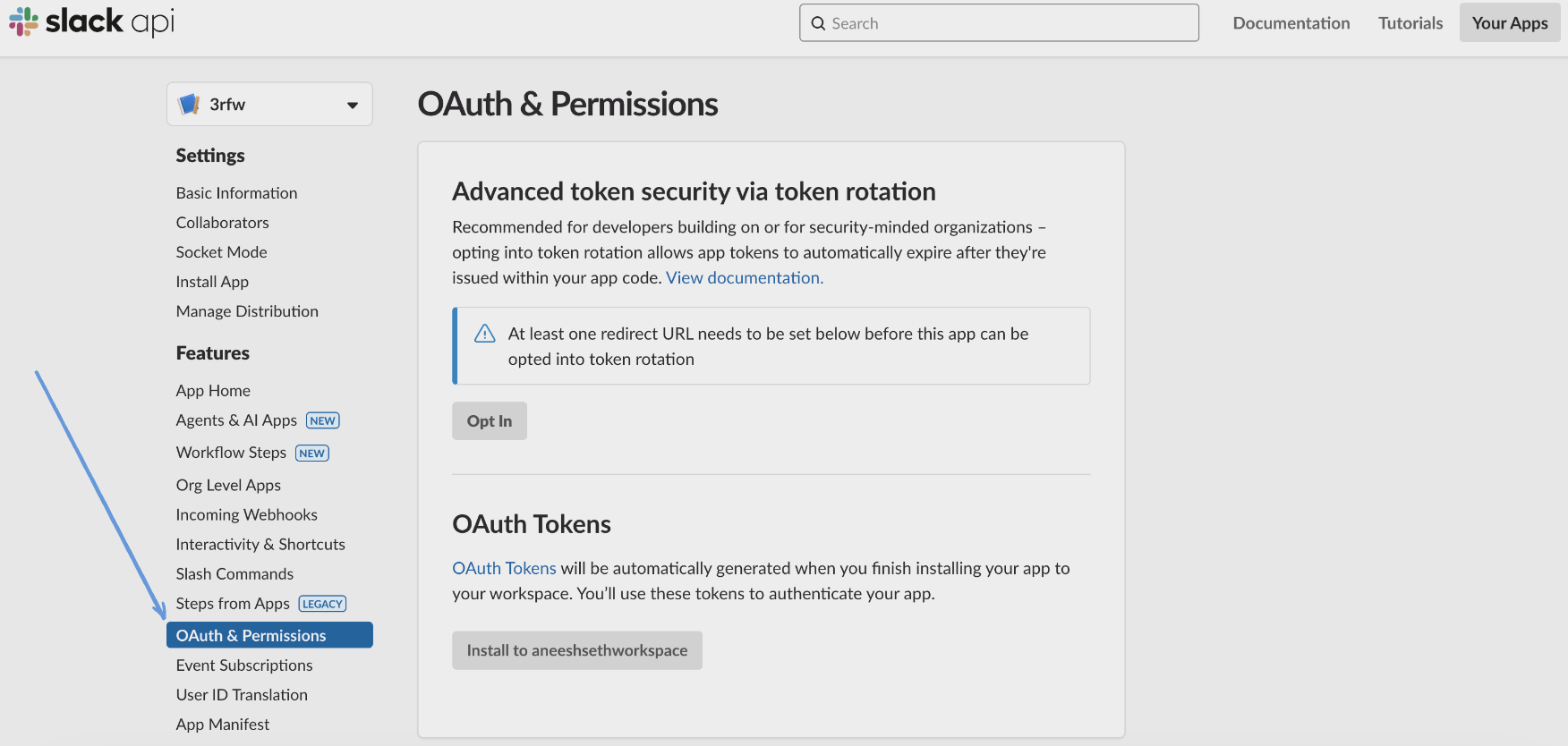
Navigate to OAuth & Permissions
- In the left sidebar, click OAuth & Permissions
-
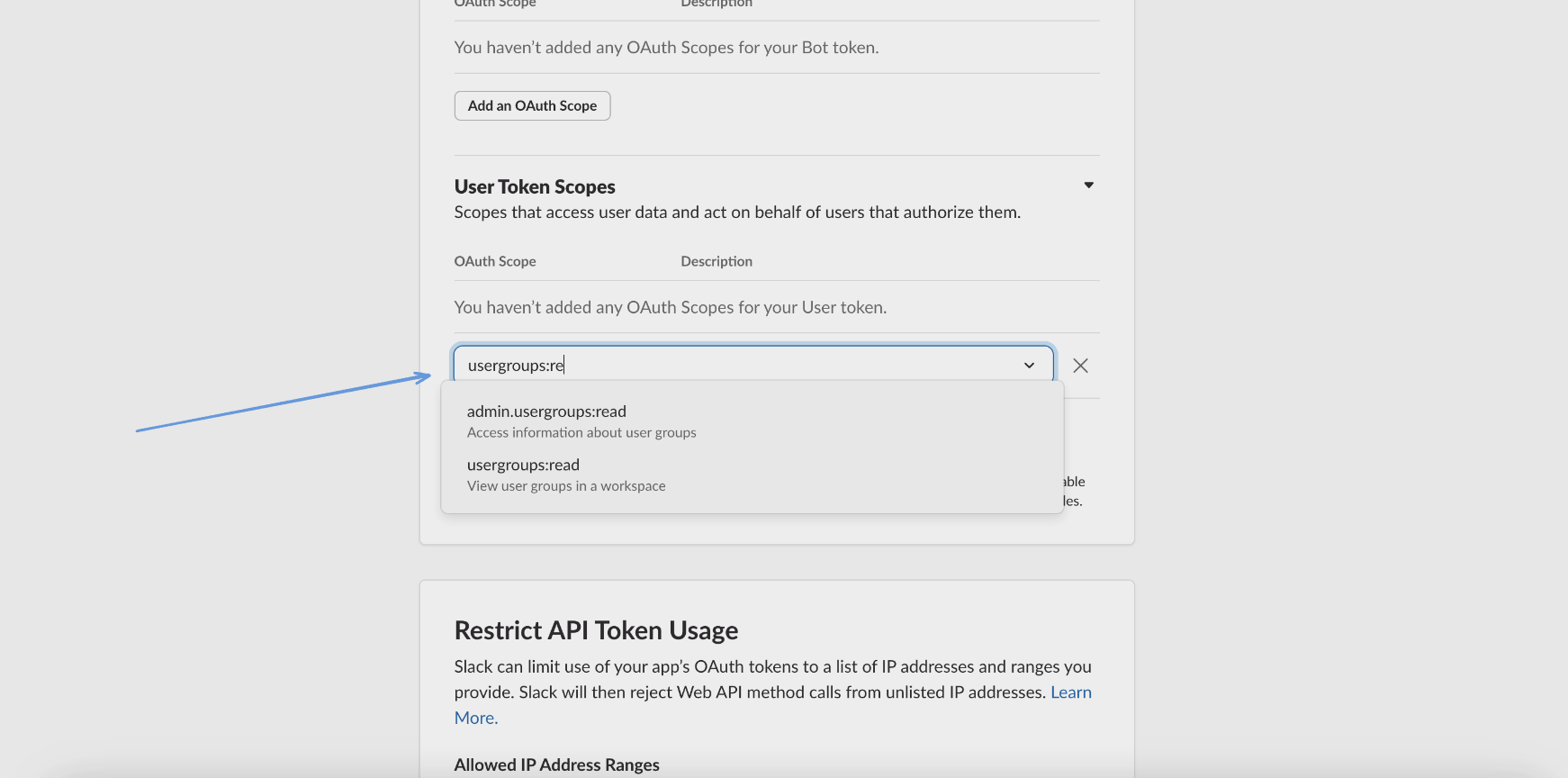
Add User Token Scopes
- Scroll down to Scopes > User Token Scopes
- Click Add an OAuth Scope
- Add the
adminscope - "Administer the workspace"
3. Install App and Get Token
-
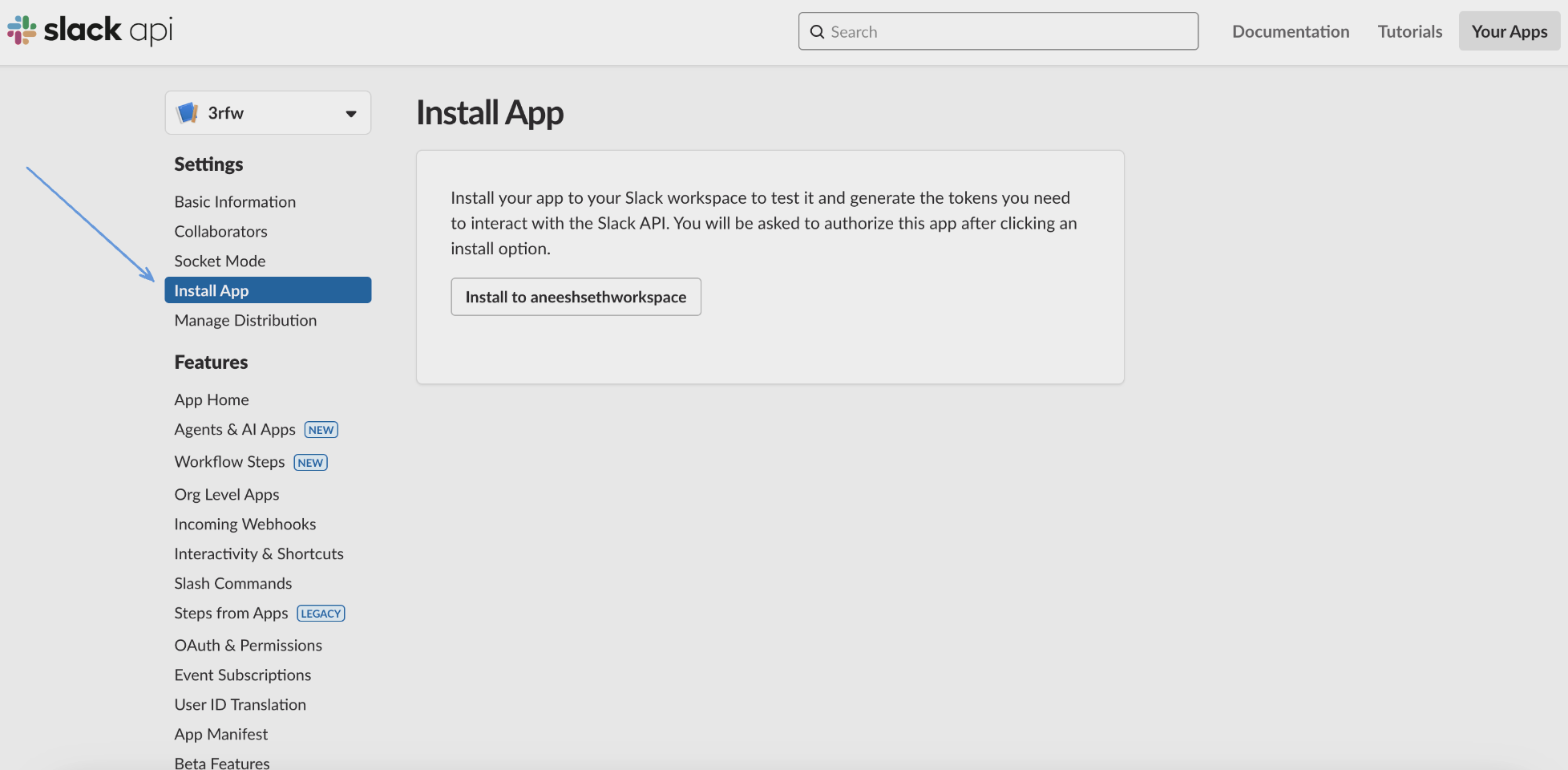
Install to Workspace
- In the left sidebar click Install App
- Click Install to Workspace button
- Click Allow when prompted to authorize the app
-
Copy User OAuth Token
- After installation, copy the User OAuth Token
- This token starts with
xoxp-and will be used in the configuration - Store it securely - treat it as a sensitive credential
Note: If you modify scopes after installation, reinstall the app for changes to take effect.
Configuration
Settings
| Setting | Type | Required | Description |
|---|---|---|---|
| backfill_start_time | string | No | The date to start fetching data from. If not specified, no past records will be fetched. |
Secrets
| Secret | Type | Required | Description |
|---|---|---|---|
| token | string | Yes | User OAuth Token with admin scope from your Slack app configuration (starts with xoxp-) |
Details
Monad tracks access log events incrementally by monitoring timestamp fields (date_first and date_last). The connector maintains state of the last successfully processed event and only fetches newer events on subsequent runs. On the first run, it performs a full sync of all available access logs based on the backfill start time or all available data if not specified.
What Data is Collected
The access logs capture:
- User Identity: User ID, username
- Session Information: First access time, last access time, access count
- Network Details: IP address, ISP, user agent
- Geographic Data: Country, region
- Access Patterns: Frequency and timing of workspace access
Important Limitations
- Rate Limits: Subject to Slack's API rate limits which may affect data collection speed
- Admin Access Required: The
adminscope requires workspace admin or owner permissions - Data Retention: Log availability depends on your Slack plan's data retention policy
- Aggregated Data: Access logs are aggregated by Slack and may not show individual login events
Troubleshooting
Common issues and their solutions:
-
Authentication failures
- Verify the OAuth token starts with
xoxp- - Ensure the token has the
adminscope - Check if the app has been installed to the workspace
- Verify your user account has admin or owner permissions
- Verify the OAuth token starts with
-
Missing data
- Check the backfill_start_time configuration
- Verify that access logging is available for your Slack plan
- Ensure the token hasn't been revoked
- Note that access logs are aggregated and may have a delay
-
Permission errors
- The
adminscope requires workspace admin or owner role - Reinstall the app if you recently added the scope
- The
Related Articles
Sample Record
{
  "user_id": "U12345",
  "username": "Jane Smith",
  "date_first": 1744456299,
  "date_last": 1744459899,
  "count": 15,
  "ip": "203.0.113.45",
  "user_agent": "SlackWeb Mozilla/5.0 (Macintosh; Intel Mac OS X 10_15_7) AppleWebKit/537.36 (KHTML, like Gecko) Chrome/121.0.0.0 Safari/537.36",
  "isp": "Comcast",
  "country": "US",
  "region": "CA"
}