PubSub
Consumes events from a given Salesforce PubSub channel.
Overview
The Salesforce PubSub input allows you to consume events from a subscription channel using the Salesforce PubSub GRPC streaming API.
Key Features
- Custom Event Support: Consume from any subscription channel with streaming enabled, including custom events
- Automatic State Tracking: Maintains state to resume consumption after service disruptions
- Historical Event Processing: Processes all available events in the channel on initialization
- Efficient Data Collection: Only collects new events on subsequent runs
How It Works
The input uses state tracking to efficiently collect events:
- Initial Run: Collects all events available in the channel (as far back as the channel's storage retention allows)
- Subsequent Runs: Collects only events that occurred after the last successful run
- State Management: Updates the replay ID with each successfully processed event to track progress
Prerequisites
Before configuring the Salesforce PubSub input, ensure you have:
- Salesforce Account: Access to a Salesforce organization with PubSub API enabled
- PubSub Channel: A subscription channel with streaming and storage enabled
- Administrative Access: Permissions to create External Client Apps and manage OAuth settings
Setup Instructions
Step 1: Creating a Salesforce External Client App
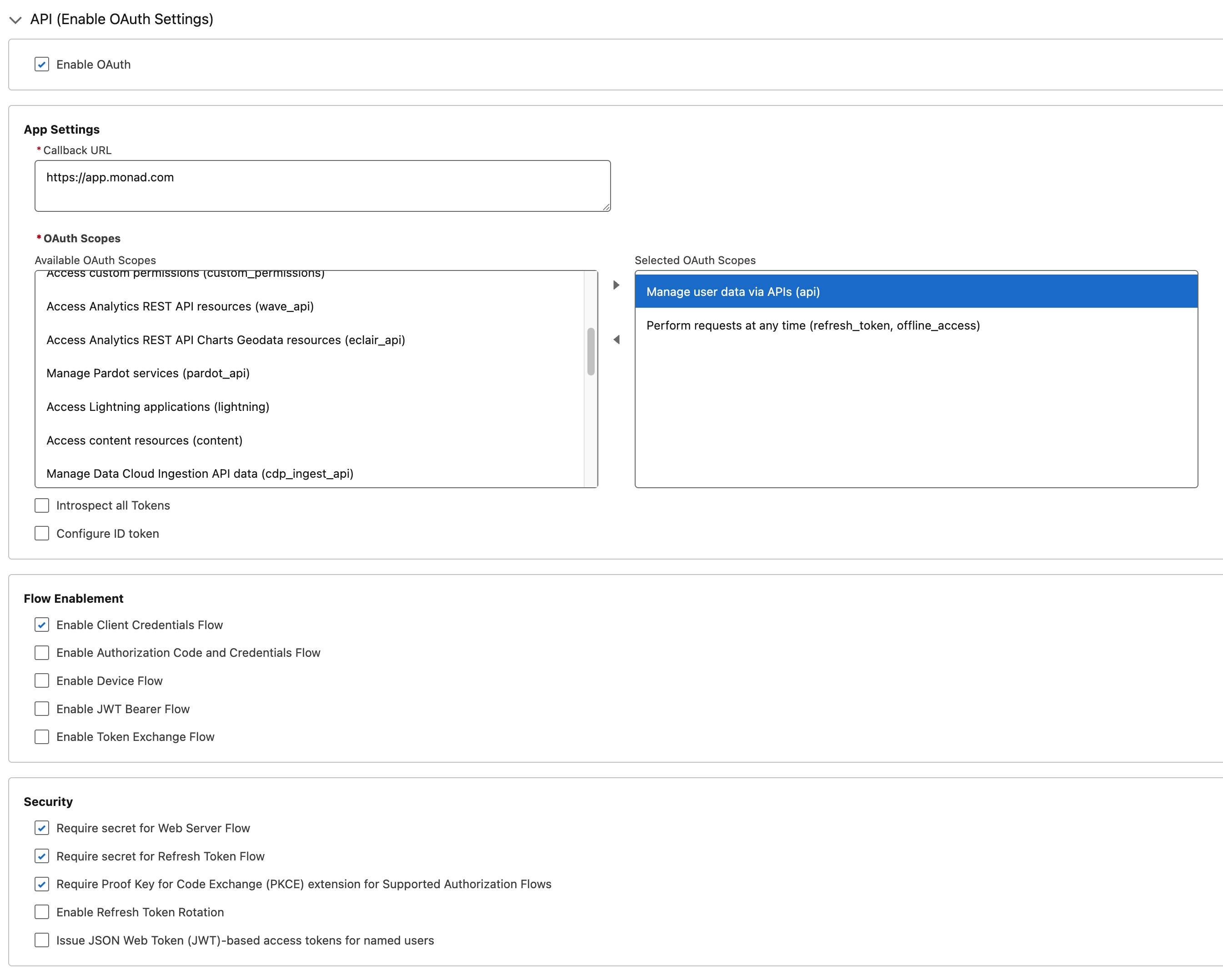
- Log in to your Salesforce account
- Navigate to Setup > Apps > External Client Apps > External Client App Manager
- Click New External Client App on the top right
- Fill in Basic Information section:
- External Client App Name: Your App Name. E.g., "Monad Salesforce PubSub"
- Contact Email: Your email address
- Distribution State: Leave as default "local"
- In API (Enable OAuth Settings) section:
- Check Enable OAuth
- Callback URL:
https://app.monad.com- This can be anything and is not used. It is required by Salesforce.
- OAuth Scopes: Add the following scopes:
Manage user data via APIs (api)Perform requests at any time (refresh_token, offline_access)
- Enable Enable Client Credentials Flow
- All other settings can be left as default
- Click Create
Step 2: Configuring OAuth Policies
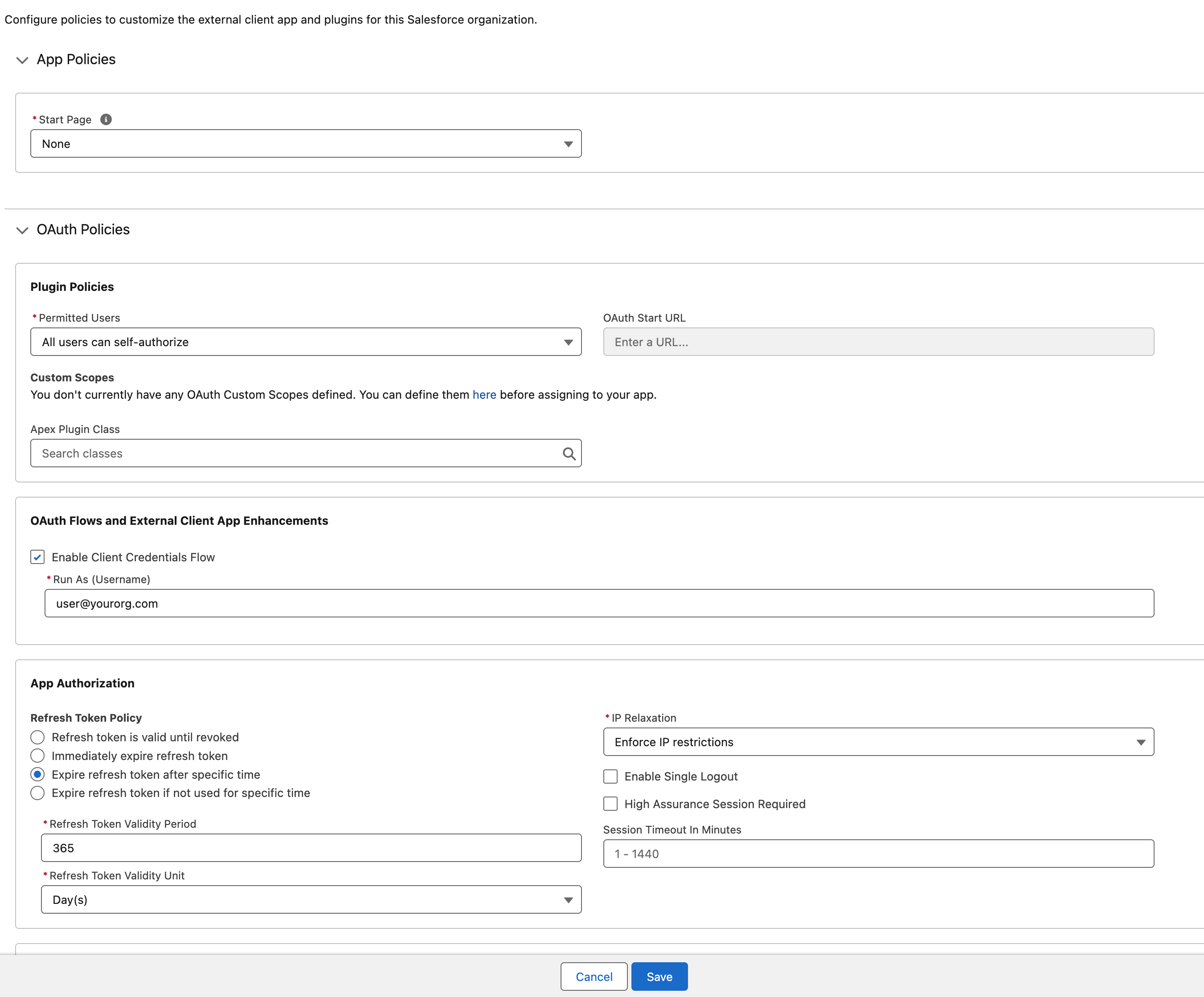
- After creating the app, you will be redirected to the app's detail page
- Click Edit on the top right
- In the OAuth Policies section:
- Enable Enable Client Credentials Flow
- Set Run As to an appropriate user with access to the PubSub channel
- All other settings can be left as default
- Click Save
Step 3: Retrieving Client Credentials
- From the new External Client App's detail page, navigate to Settings > OAuth Settings
- Click Consumer Key and Secret
- Verification may be required before viewing the secrets
- Copy the Consumer Key and Consumer Secret.
- These will be used as the Client ID and Client Secret in the input configuration.
Configuration
Required Settings
| Setting | Type | Description | How to Find |
|---|---|---|---|
| DomainURL | string | Domain URL for your Salesforce instance | Setup > Company Settings > My Domain → Current My Domain URL |
| OrganizationID | string | Organization ID for your Salesforce instance | Setup > Company Settings > Company Information → Salesforce.com Organization ID |
| Topic | string | Pub/Sub topic to subscribe to | Setup > Events > Event Manager > Subscription Channel |
Required Secrets
| Secret | Description |
|---|---|
| Client ID | OAuth Client ID from the External Client App (Consumer Key) |
| Client Secret | OAuth Client Secret from the External Client App (Consumer Secret) |
Technical Details
API Integration
This input uses the Salesforce Pub/Sub API via GRPC endpoints:
- Primary Method:
Subscribe- Consumes events from the subscription channel - Supporting Methods:
GetTopic- Verifies topic accessibility and configurationGetSchema- Retrieves the schema for message decoding
Authentication & Rate Limiting
- Authentication: OAuth 2.0 Client Credentials flow
- Rate Limiting: Automatically respects Salesforce's API rate limits
- Connection Management: Maintains persistent GRPC streaming connections
Troubleshooting
Common Issues
- No Events Returned
- Check that the channel has streaming enabled in Setup > Events > Event Manager
- Missing Events or Gaps in Events
- Ensure the channel has storage enabled to retain events in Setup > Events > Event Manager
- Authentication Errors
- Verify Enable Client Credentials Flow is enabled in both the External Client App Settings and OAuth Policies