Search Events
Ingests search event logs from Salesforce via the EventLogFile REST API for audit trail analysis and user activity monitoring.
Sync Type: Incremental
Overview
The Salesforce Search Events input allows you to periodically ingest search event logs from your Salesforce organization. This input queries the EventLogFile API to retrieve metadata about available search event log files, then downloads and processes the CSV log files to extract individual search events.
Key Features
- Incremental Syncing: Tracks state using event timestamps (TIMESTAMP_DERIVED) at the row level to avoid re-processing historical data
- Hourly Log Files: Processes hourly search event logs generated by Salesforce with Real-Time Event Monitoring enabled
- Event Details: Captures request IDs, event types, and timestamps for comprehensive search activity tracking
Prerequisites
Before configuring the Salesforce Search Events input, ensure you have:
- Salesforce Account: Access to a Salesforce organization
- Administrative Access: Permissions to create External Client Apps and manage OAuth settings
- Standard Edition or Higher: The EventLogFile API is available in most Salesforce editions
- Note on Real-Time Event Monitoring: While this input uses the standard EventLogFile API (which generates logs daily or hourly with Real-Time Event Monitoring), your organization does NOT need a Real-Time Event Monitoring license to use this input
Setup Instructions
Step 1: Creating a Salesforce External Client App
- Log in to your Salesforce account
- Navigate to Setup > Apps > External Client Apps > External Client App Manager
- Click New External Client App on the top right
- Fill in Basic Information section:
- External Client App Name: Your App Name. E.g., "Monad Salesforce Search Events"
- Contact Email: Your email address
- Distribution State: Leave as default "local"
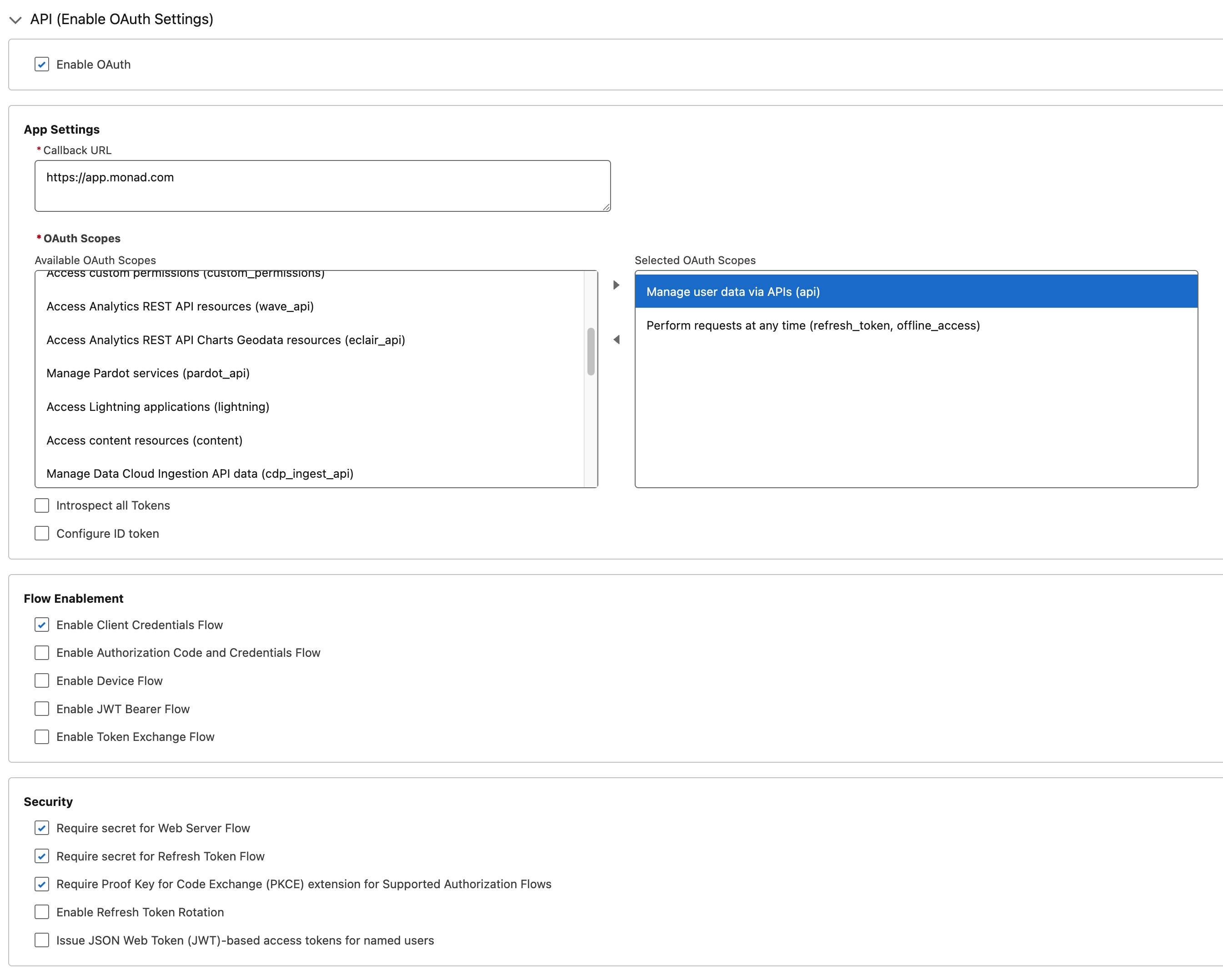
- In API (Enable OAuth Settings) section:
- Check Enable OAuth
- Callback URL:
https://app.monad.com- This can be anything and is not used. It is required by Salesforce.
- OAuth Scopes: Add the following scope:
Manage user data via APIs (api)
- Enable Enable Client Credentials Flow
- All other settings can be left as default
- Click Create
Step 2: Configuring OAuth Policies
- After creating the app, you will be redirected to the app's detail page
- Click Edit on the top right
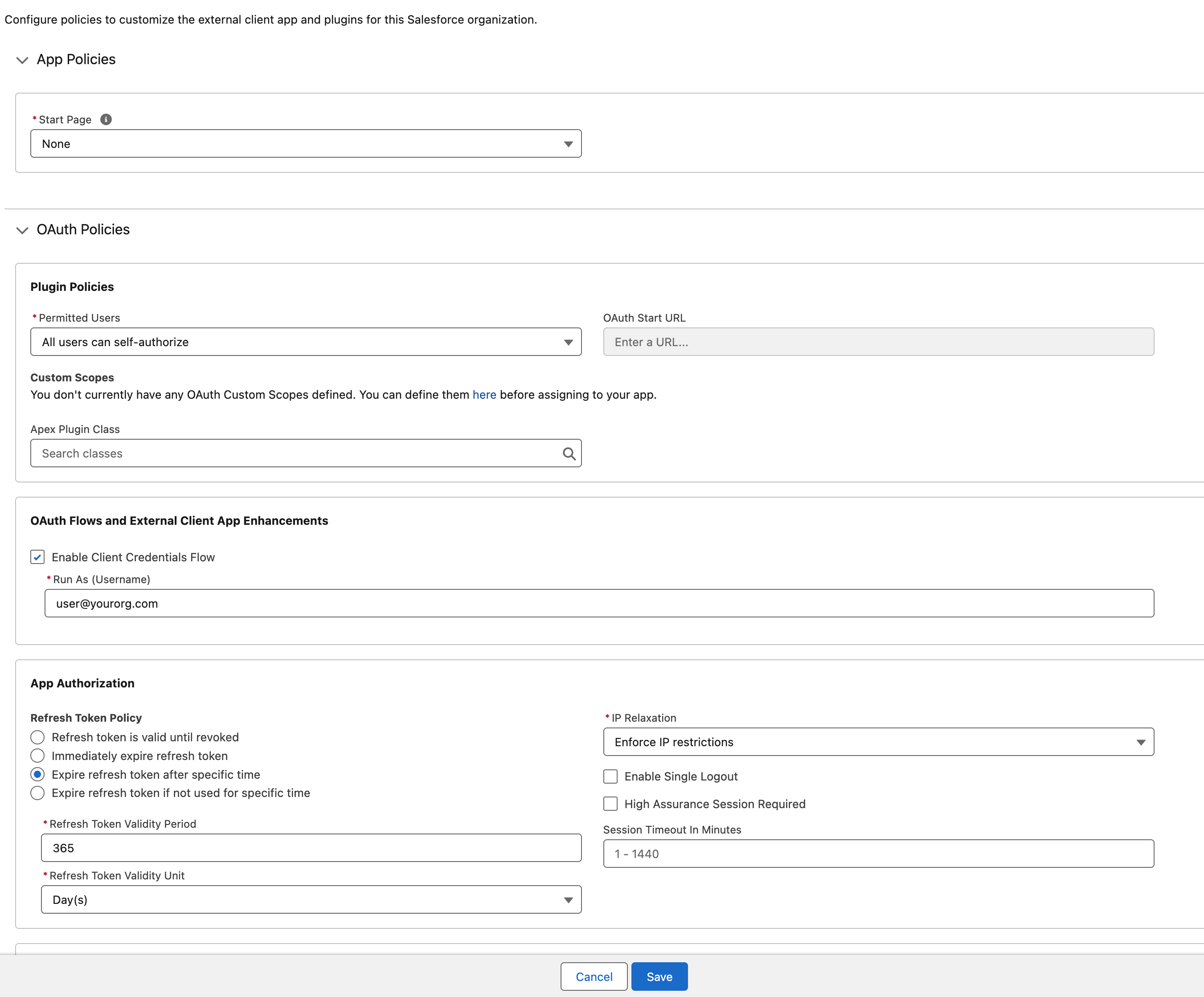
- In the OAuth Policies section:
- Enable Enable Client Credentials Flow
- Set Run As to an appropriate user with access to event logs
- All other settings can be left as default
- Click Save
Step 3: Retrieving Client Credentials
- From the new External Client App's detail page, navigate to Settings > OAuth Settings
- Click Consumer Key and Secret
- Verification may be required before viewing the secrets
- Copy the Consumer Key and Consumer Secret
- These will be used as the Client ID and Client Secret in the input configuration
Step 4: Finding Your Domain URL and Organization ID
- Domain URL: Navigate to Setup > Company Settings > My Domain → Copy the Current My Domain URL (e.g.,
https://example.my.salesforce.com) - Organization ID: Navigate to Setup > Company Settings > Company Information → Copy the Salesforce.com Organization ID
Configuration
Settings
| Setting | Type | Required | Description |
|---|---|---|---|
| Domain URL | string | Yes | The domain URL of your Salesforce instance (e.g., https://example.my.salesforce.com) |
| Organization ID | string | Yes | Your Salesforce organization ID |
Secrets
| Secret | Type | Required | Description |
|---|---|---|---|
| Client ID | string | Yes | OAuth Client ID from the External Client App (Consumer Key) |
| Client Secret | string | Yes | OAuth Client Secret from the External Client App (Consumer Secret) |
Technical Details
API Integration
This input uses the Salesforce EventLogFile REST API via a two-step process:
-
Query EventLogFile Metadata: Retrieves available search event log files using SOQL query with hourly interval filtering:
SELECT Id, EventType, LogFile, LogDate, LogFileLength FROM EventLogFile
WHERE EventType = 'Search' AND Interval = 'Hourly'
ORDER BY LogDate ASC -
Download and Parse CSV: Downloads each log file and parses it as CSV to extract individual search events
State Management
- Ascending Cursor: Tracks the
TIMESTAMP_DERIVEDfield at the CSV row level to avoid re-processing individual events across multiple files - LastProcessedFileDate Flag: Records the LogDate of the last completely processed file to ensure proper pagination
- Checkpoint Tracking: Automatically checkpoints state every 100 rows and after each complete file is processed for crash recovery
Rate Limits
Salesforce applies standard API rate limits based on your organization's edition and licensing:
| Scope | Limit | Window | Notes |
|---|---|---|---|
| API Requests | Varies by edition | 24 hours | Shared across all API clients. EventLogFile API uses standard API calls |
| Concurrent Requests | 25 | Per org | Total concurrent requests to Salesforce |
Headers: Sforce-Limit-Info
Source: Salesforce API Rate Limits
Generating Test Data
To generate sample search event logs for testing:
- Via Salesforce UI: Perform searches in the Salesforce user interface (global search, advanced search)
- Via SOSL API: Use the Salesforce Object Search Language (SOSL) API to programmatically generate search events
- Wait for Log Generation: Search events are logged asynchronously. New log files are generated hourly.
- Verification: Check Setup > Event Log File > EventLogFile to see available log files. Only hourly logs will be processed by this input.
Troubleshooting
No Data Returned
- Verify that searches have been performed in your Salesforce organization
- Check that log files have been generated (may take up to 24 hours initially for the first logs)
- Confirm that your OAuth credentials have the correct scopes and permissions
- Verify the Domain URL and Organization ID are correct
Authentication Errors
- Ensure Enable Client Credentials Flow is enabled in both the External Client App Settings and OAuth Policies
- Verify that the Consumer Key and Consumer Secret are correctly configured
- Check that your Run As user has access to event logs
Missing Events
- Search events may not be available immediately after searches are performed
- Check that your time range in the input configuration aligns with available log files
Related Articles
- Salesforce EventLogFile API Documentation
- Salesforce SOQL Query Language
- Salesforce Event Log File Object
Sample Record
{
   "EVENT_TYPE": "Search",
   "NUM_RESULTS": "1",
   "ORGANIZATION_ID": "mIDHx000000BsBZM",
   "PREFIXES_SEARCHED": "00B",
   "QUERY_ID": "FMfOWwnJYMudgKAave",
   "REQUEST_ID": "wnhpqJNPhCuJYRWm",
   "SEARCH_QUERY": "opportunity*",
   "TIMESTAMP": "20260316065702.491",
   "TIMESTAMP_DERIVED": "2026-03-16T03:57:02.491Z",
   "USER_ID": "nrRwgxrQPGYNWlxS"
}