Salesforce Users
Cron to periodically fetch users from Salesforce via the Salesforce REST API.
Overview
The Salesforce Users input allows you to periodically fetch users from Salesforce via the Salesforce REST API.
Key Features
- Enrichments: Enrich Salesforce event data with user details such as name, email, role, and profile information
Prerequisites
Before configuring the Salesforce PubSub input, ensure you have:
- Salesforce Account: Access to a Salesforce organization
- Administrative Access: Permissions to create External Client Apps and manage OAuth settings
Setup Instructions
Step 1: Creating a Salesforce External Client App
- Log in to your Salesforce account
- Navigate to Setup > Apps > External Client Apps > External Client App Manager
- Click New External Client App on the top right
- Fill in Basic Information section:
- External Client App Name: Your App Name. E.g., "Monad Salesforce"
- Contact Email: Your email address
- Distribution State: Leave as default "local"
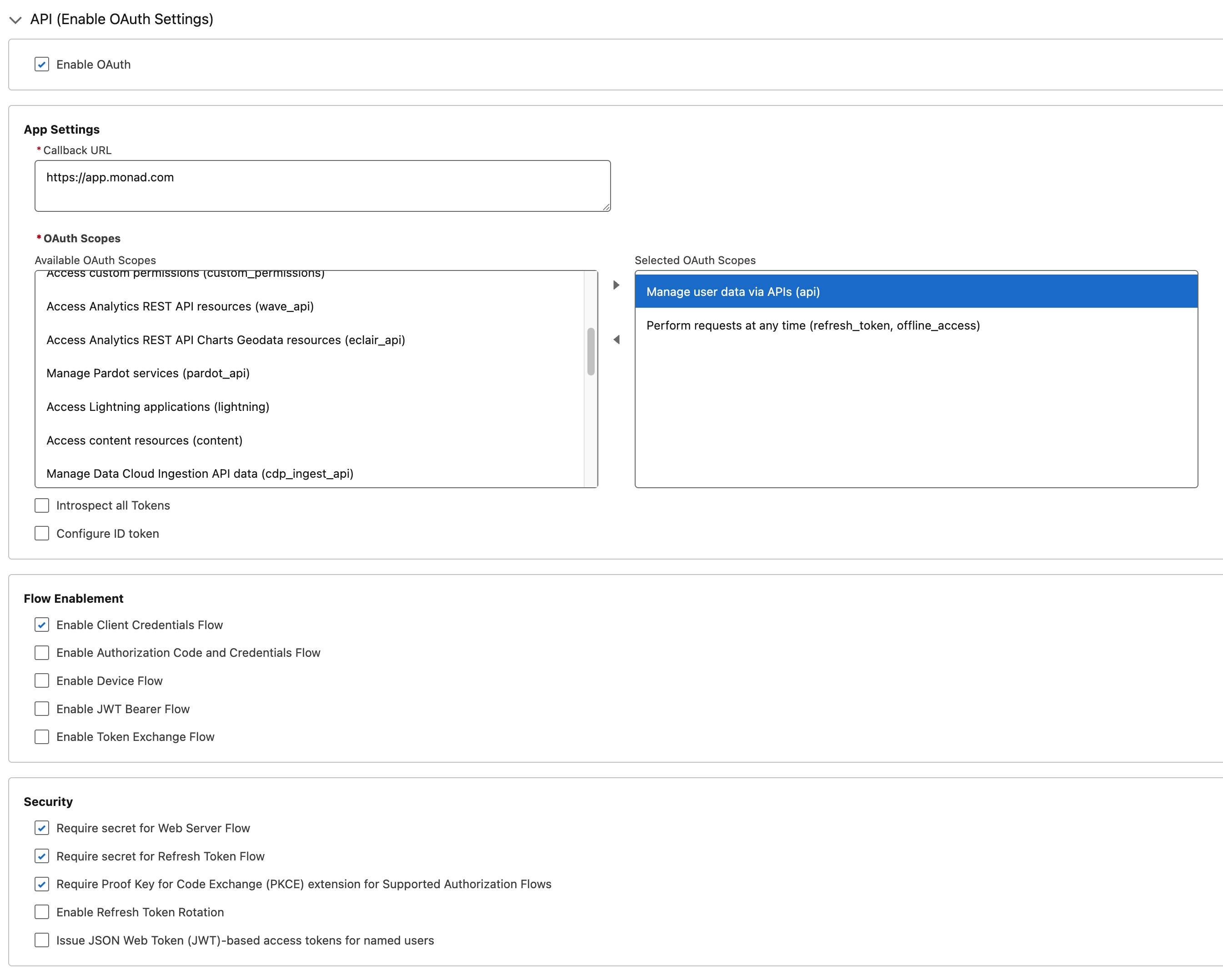
- In API (Enable OAuth Settings) section:
- Check Enable OAuth
- Callback URL:
https://app.monad.com- This can be anything and is not used. It is required by Salesforce.
- OAuth Scopes: Add the following scopes:
Manage user data via APIs (api)Perform requests at any time (refresh_token, offline_access)
- Enable Enable Client Credentials Flow
- All other settings can be left as default
- Click Create
Step 2: Configuring OAuth Policies
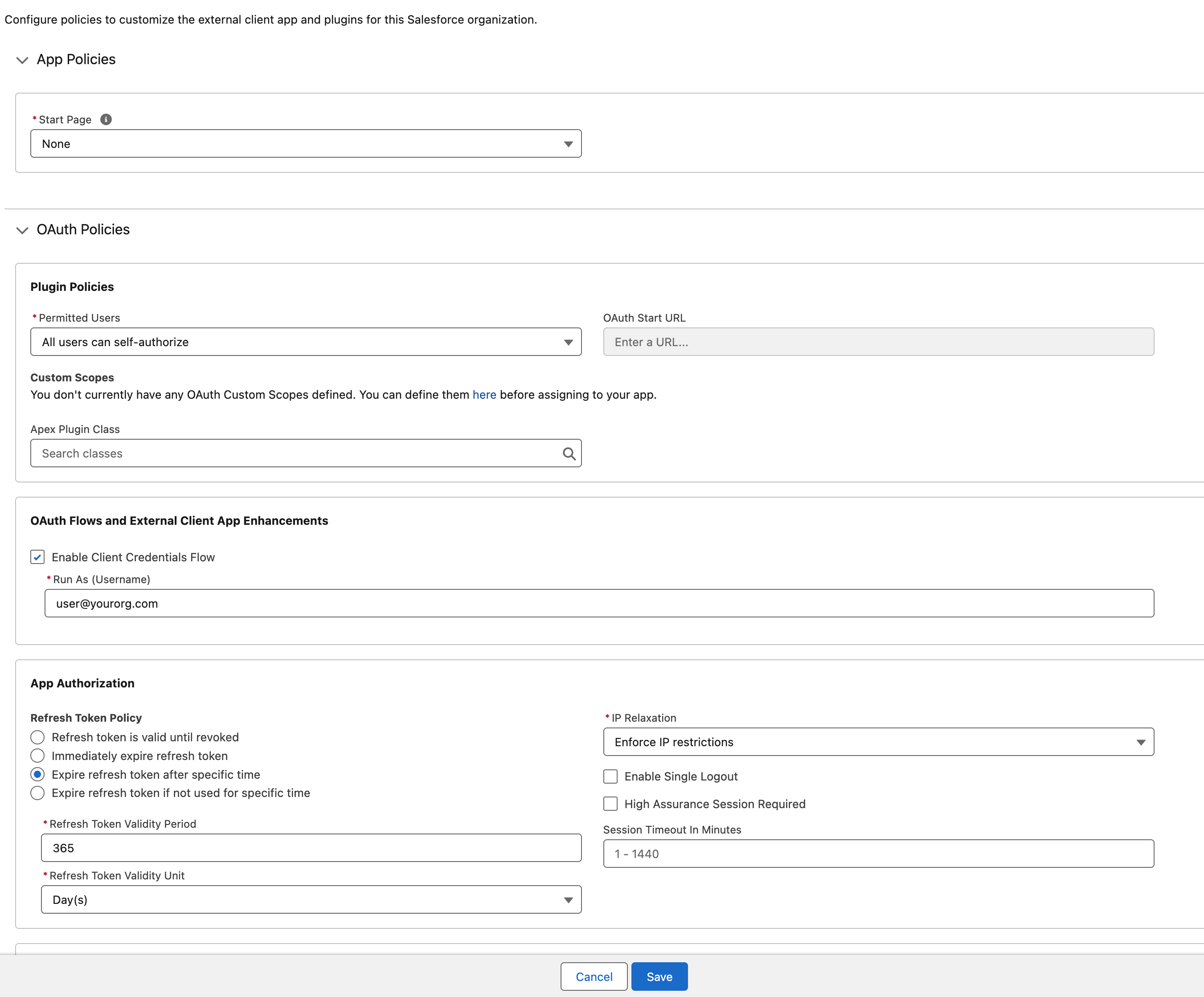
- After creating the app, you will be redirected to the app's detail page
- Click Edit on the top right
- In the OAuth Policies section:
- Enable Enable Client Credentials Flow
- Set Run As to an appropriate user with access to the PubSub channel
- All other settings can be left as default
- Click Save
Step 3: Retrieving Client Credentials
- From the new External Client App's detail page, navigate to Settings > OAuth Settings
- Click Consumer Key and Secret
- Verification may be required before viewing the secrets
- Copy the Consumer Key and Consumer Secret.
- These will be used as the Client ID and Client Secret in the input configuration.
Configuration
Required Settings
| Setting | Type | Description | How to Find |
|---|---|---|---|
| DomainURL | string | Domain URL for your Salesforce instance | Setup > Company Settings > My Domain → Current My Domain URL |
| OrganizationID | string | Organization ID for your Salesforce instance | Setup > Company Settings > Company Information → Salesforce.com Organization ID |
| Include Inactive Users | bool | Include inactive users in the results |
Required Secrets
| Secret | Description |
|---|---|
| Client ID | OAuth Client ID from the External Client App (Consumer Key) |
| Client Secret | OAuth Client Secret from the External Client App (Consumer Secret) |
Technical Details
API Integration
This input uses the Salesforce Query Rest API to fetch user lists and the Salesforce sObject API to retrieve user details.
Authentication & Rate Limiting
- Authentication: OAuth 2.0 Client Credentials flow
- Rate Limiting: Automatically respects Salesforce's API rate limits