Microsoft Azure Blob Storage
Writes data to Azure Blob Storage containers in various file formats. Supports configurable partitioning, compression, and batching options for optimal data organization and performance.
Requirements
To configure Azure as an output destination for Monad, complete the following steps:
Step 1: Create Microsoft Entra Application
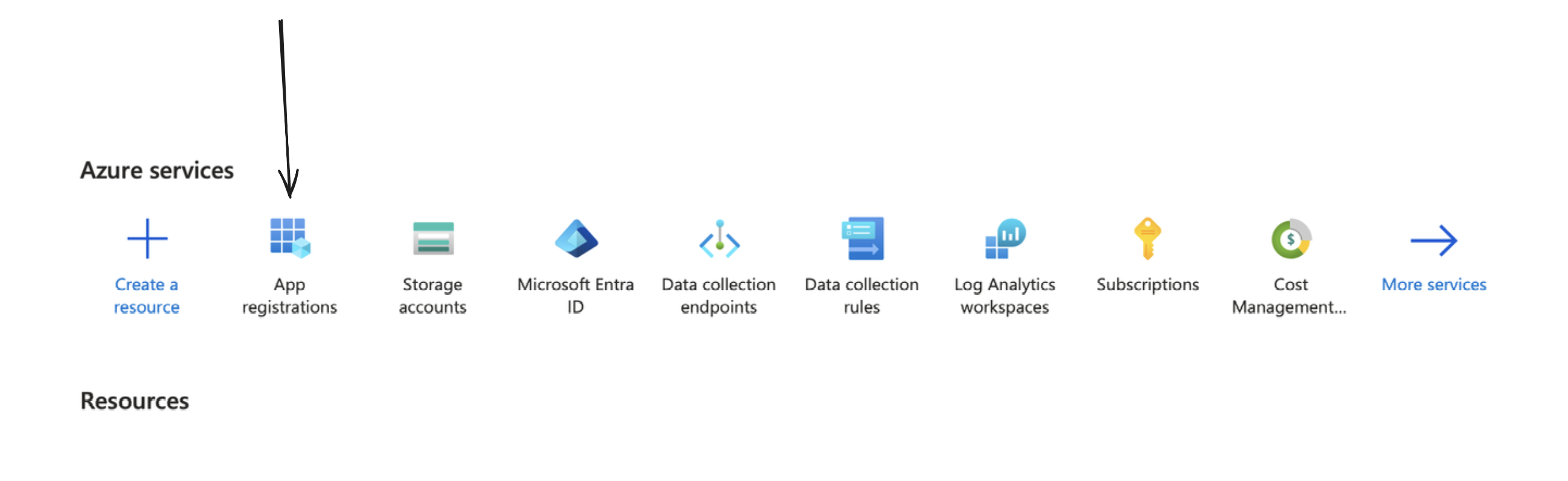
You can create one by going to your Azure portal, and clicking on/searching for App Registrations.
From the above step, you would receive a valid Application (Client) ID, Directory (Tenant ID), and a Client Secret Value, which would be used as a part of setting up the output connector.
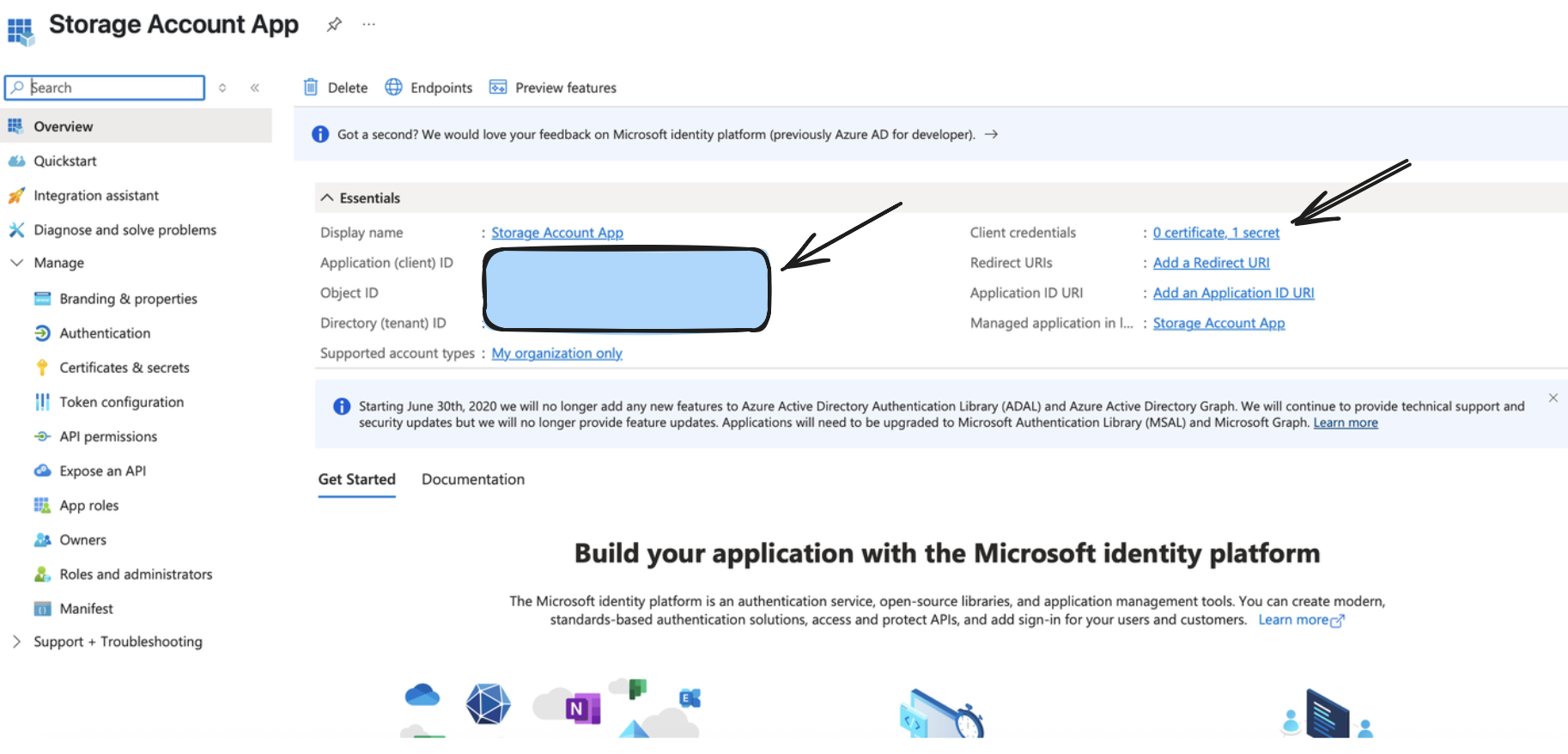
Step 2: Create/Configure a Storage Account
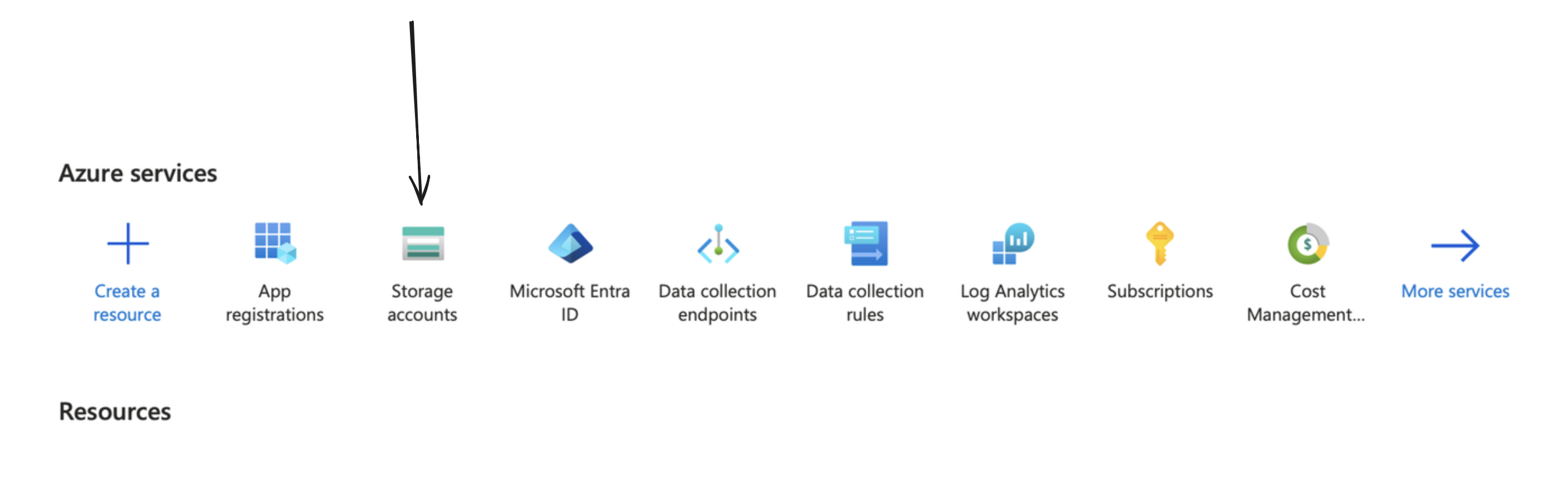
You can create one by going to your Azure portal, and clicking on/searching for Storage Accounts.
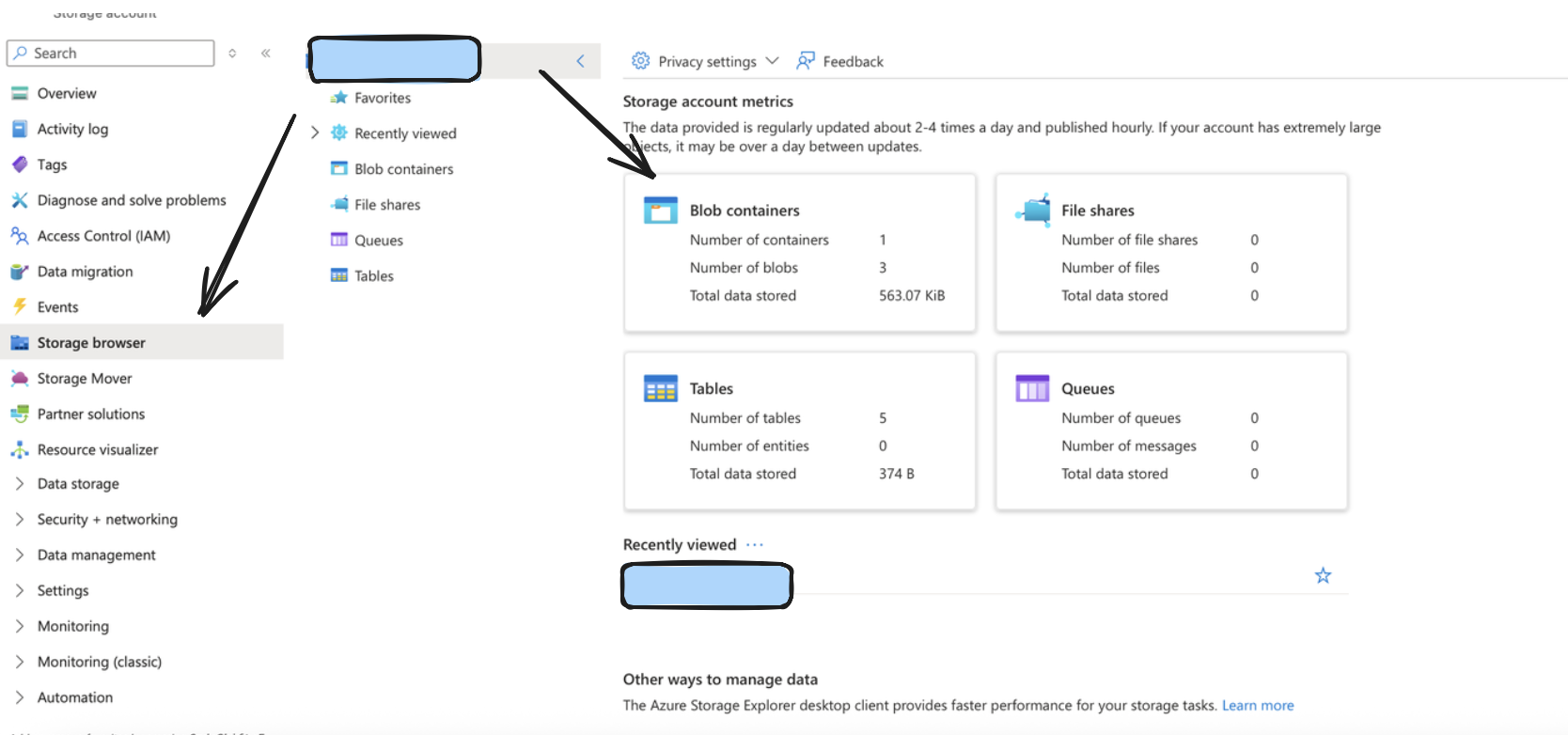
After doing so, create a container by going to the storage browser on the left sidebar, and choosing the Blob Containers widget. The name of your storage account in the format https://account_name.blob.core.windows.net typically would be your Account URL.
Step 3: Setup Appropriate permissions
Monad requires specific permissions setup to allow access to ingest input data into Azure. Follow the below steps to do so.
Retrieve the exact name from the App created/being used from under App Registrations like we did before.
After doing so, go to your storage account, and under IAM, click on Add to add a new Role Assignment.
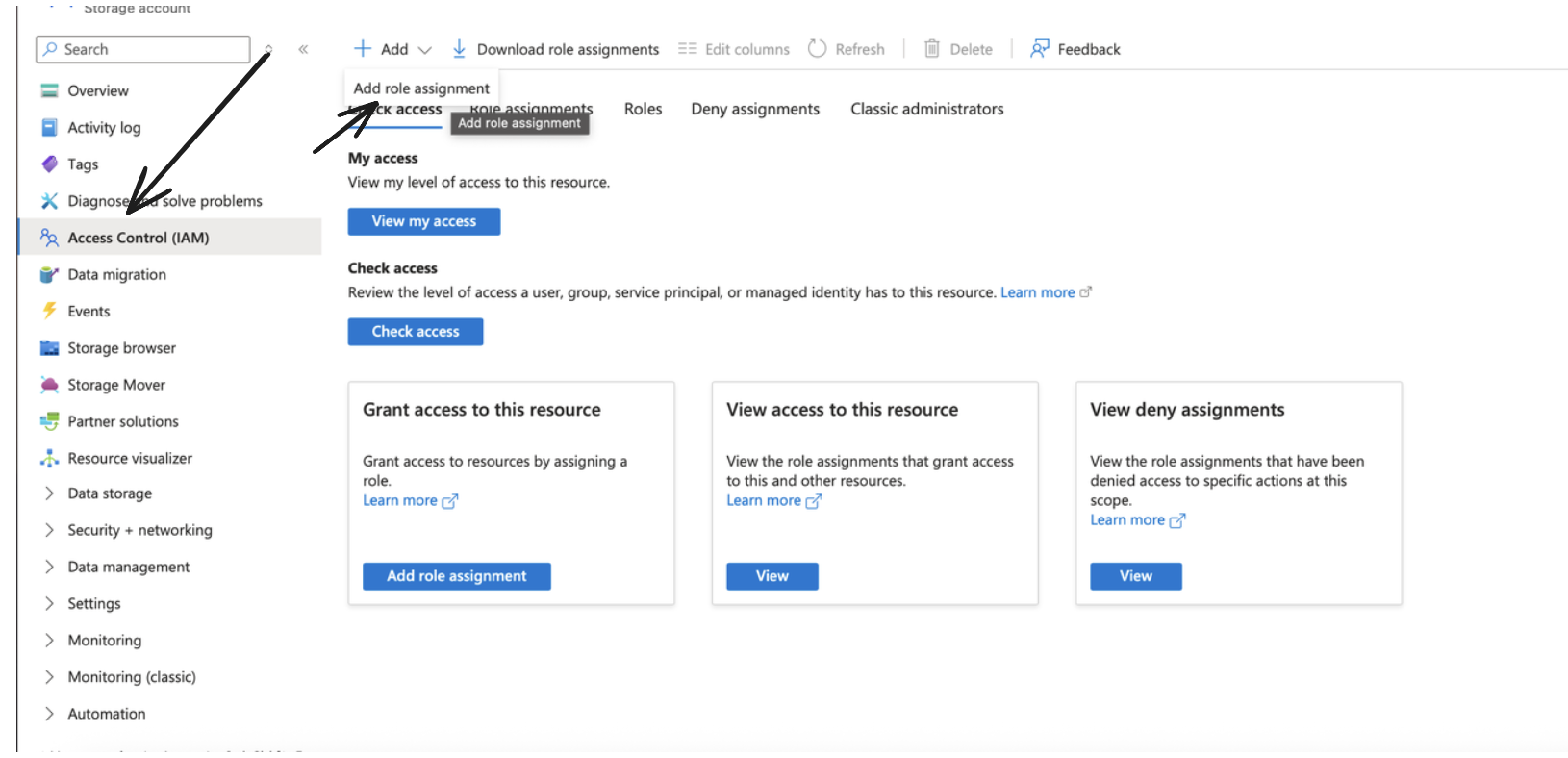
Make sure to choose the Storage Blob Data Contributor role and click next.
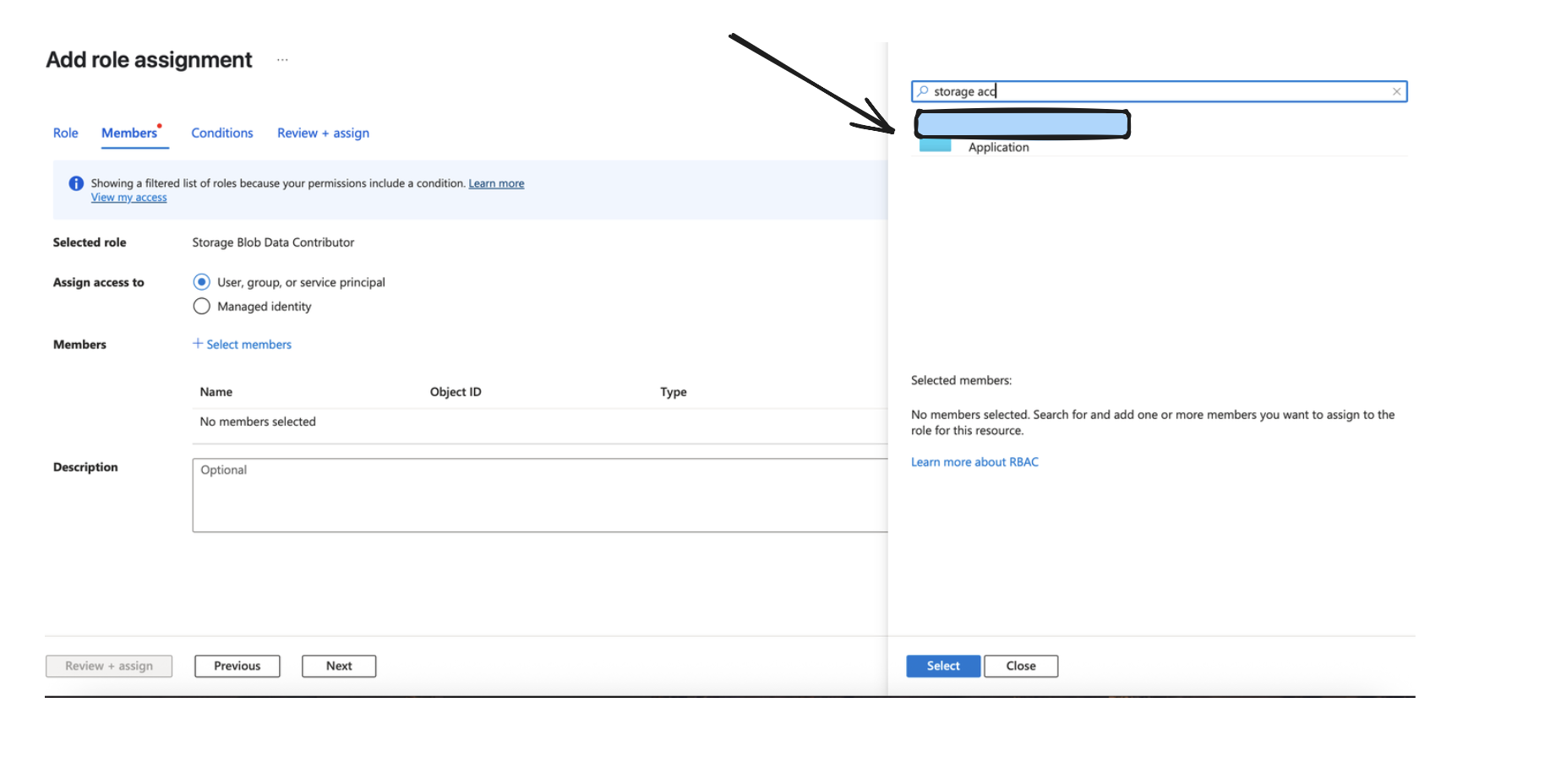
Assign Access to the Application like done in the Image below, and go ahead and add the role assignment.
Functionality
The output continuously sends data to your specified path, formatted as prefix/partition/filename.format.compression, where:
- The partition structure depends on your chosen partition format (simple date or Hive-compliant)
- Files are created based on batching configuration (record count, data size, or time elapsed)
- Data is compressed using your selected compression method before storage
Batching Behavior
Monad batches records before sending to Azure based on three configurable limits:
- Record Count: Maximum number of records per file (default: 100,000, range: 500-1,000,000)
- Data Size: Maximum uncompressed size per file (default: 10 MB, range: 1-25 MB)
- Time Interval: Maximum time before flushing a batch (default: 45 seconds, range: 1-60 seconds)
Whichever limit is reached first triggers the batch to be written to Azure. This ensures timely delivery while optimizing file sizes for downstream processing.
Output Formats
The output format depends on your configuration:
- JSON Array Format: Records are stored as a standard JSON array
- JSON Nested Format: Records are wrapped under your specified key (e.g.,
{"records": [...]}) - JSON Line Format: Each record is on its own line (JSONL format)
- Delimited Format: Records in CSV or other delimited formats
- Parquet Format: Columnar storage format for efficient analytics
Configuration
Settings
| Setting | Type | Required | Default | Description |
|---|---|---|---|---|
| Container | string | Yes | - | A container organizes a set of blobs, similar to a directory in a file system |
| Account URL | string | Yes | - | Represents your storage account in Azure. Typically of the format https://account_name.blob.core.windows.net. |
| Prefix | string | No | - | An optional prefix for Azure object keys to organize data within the container |
| Format Configuration | object | Yes | - | The format configuration for output data - see Format Options below |
| Compression Method | string | Yes | - | The compression method to be applied to the data before storing (e.g., gzip, snappy, none) |
| Partition Format | string | Yes | simple_date | The format for organizing data into partitions within the Azure Container |
| Batch Configuration | object | No | See defaults given in one of the sections below | Controls when batches are written to Azure |
Format Options
The output format determines how your data is structured in the storage files. You must configure exactly one format type you can see documentation on formats here: Formats.
Partition Format Options
- Simple Date Format (
simple_date):
- Structure:
{prefix}/{YYYY}/{MM}/{DD}/{filename} - Example:
my-data/2024/01/15/20240115T123045Z-uuid.json.gz - Use case: Straightforward date-based organization
- Hive-Compliant Format (
hive_compliant):
- Structure:
{prefix}/year={YYYY}/month={MM}/day={DD}/{filename} - Example:
my-data/year=2024/month=01/day=15/20240115T123045Z-uuid.parquet - Use case: Compatible with Athena, Hive, and other query engines that expect this partitioning scheme
Both partition formats use UTC time for consistency across different time zones.
Batch Configuration
| Setting | Type | Default | Min | Max | Description |
|---|---|---|---|---|---|
| record_count | integer | 100,000 | 500 | 1,000,000 | Maximum number of records per file |
| data_size | integer | 10,485,760 (10 MB) | 1,048,576 (1 MB) | 26,214,400 (25 MB) | Maximum uncompressed data size per file in bytes |
| publish_rate | integer | 45 | 1 | 60 | Maximum seconds before flushing a batch |
Secrets
| Secret | Type | Required | Description |
|---|---|---|---|
| Tenant ID | string | Yes | The Azure Active Directory tenant (directory) ID. |
| Client ID | string | Yes | The application (client) ID registered in Azure Active Directory. |
| Client Secret | string | Yes | The client secret associated with the registered application in Azure AD. |
Best Practices
-
File Size Optimization: Balance between file size and query performance. Larger files (closer to the 10 MB default) are generally better for analytics workloads.
-
Compression Selection:
- gzip: Best compression ratio, slower write speed
- snappy: Balanced compression and speed, good for Parquet files
- none: Fastest writes, largest file sizes
- Partition Strategy:
- Use
hive_compliantwhen querying with Athena, Redshift Spectrum, or similar services - Use
simple_datefor simpler directory structures or custom processing pipelines
- Format Selection:
- Parquet: Best for analytics, columnar queries, and data warehousing
- JSON: Best for flexibility and human readability
- CSV: Best for compatibility with traditional tools and spreadsheets