

Smart Optimizer
The Smart Optimizer is an AI assistant built into the transform editor. It analyzes your input data and recommends operations — like dropping low-value fields or masking PII — so you don't have to inspect every record manually.
How to use it
The Smart Optimizer is available during transform configuration (Configure transform step).
1. Open the optimizer
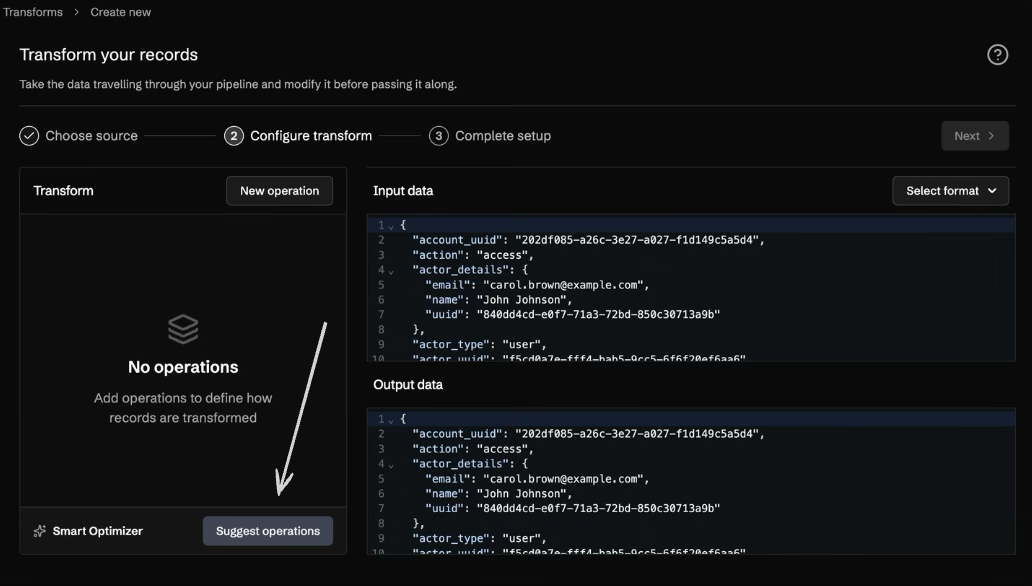
If you have no operations yet, click Suggest operations in the Smart Optimizer bar at the bottom of the editor.
2. Choose a strategy
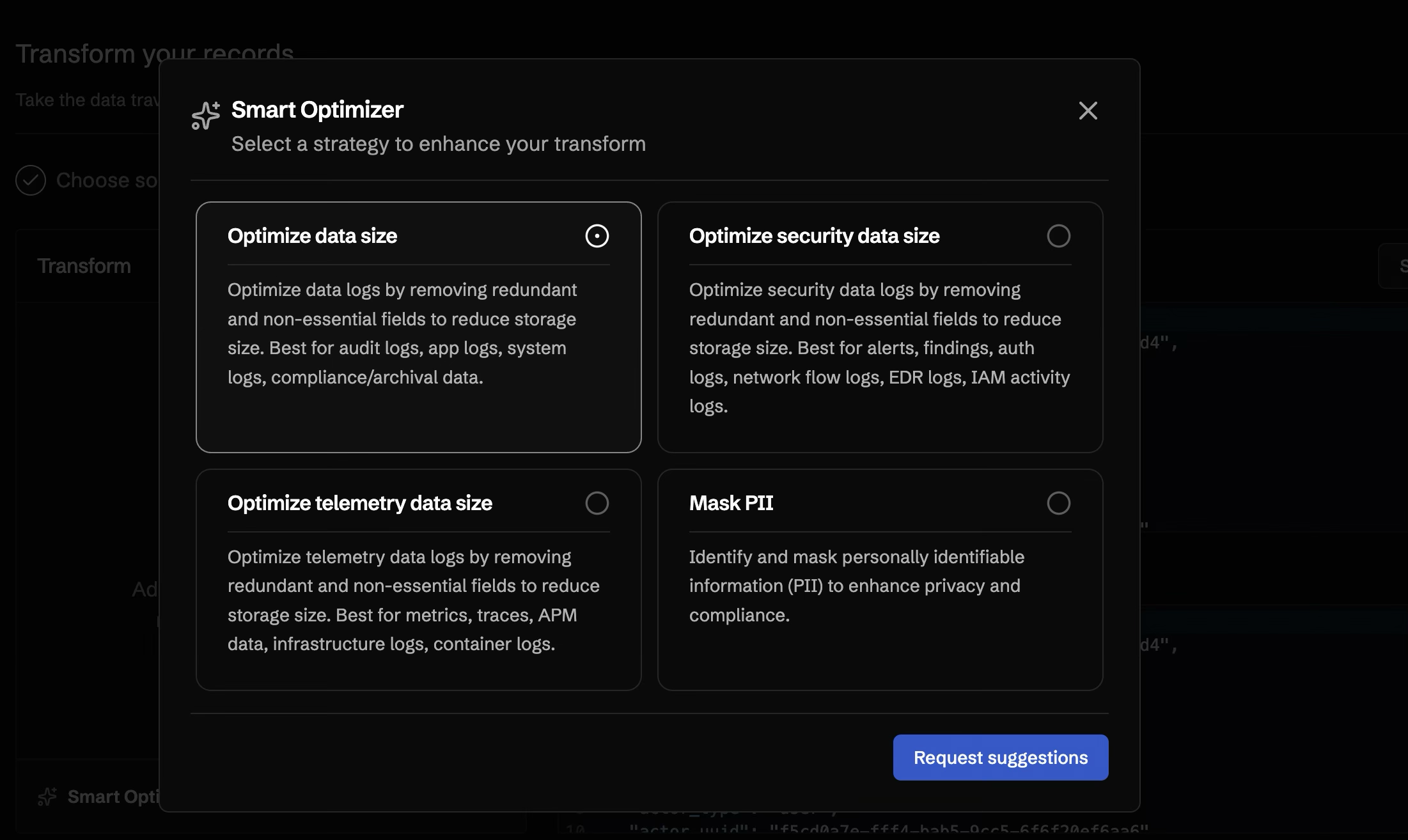
Select the optimization goal that best matches your data type, then click Request suggestions.
| Strategy | Best for |
|---|---|
| Optimize data size | Audit logs, app logs, system logs, compliance/archival data |
| Optimize security data size | Alerts, findings, auth logs, network flow logs, EDR logs, IAM activity logs |
| Optimize telemetry data size | Metrics, traces, APM data, infrastructure logs, container logs |
| Mask PII | Any data containing personally identifiable information |
3. Review suggestions
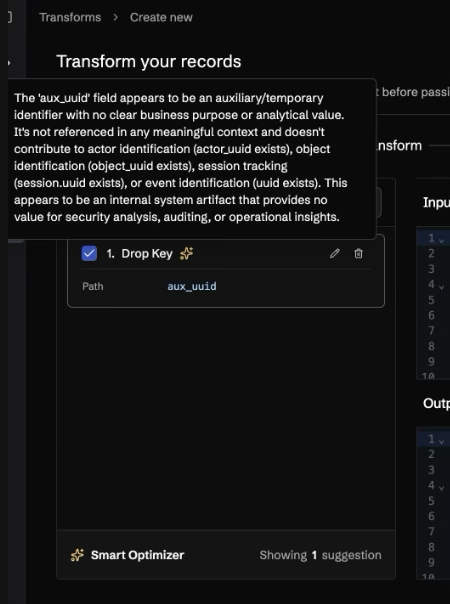
The optimizer returns a list of suggested operations. Each suggestion includes an explanation of why the field was flagged.
4. Apply and verify
Accepted suggestions are added as operations in your transform. The output preview updates in real time so you can see the before/after and the percentage reduction.
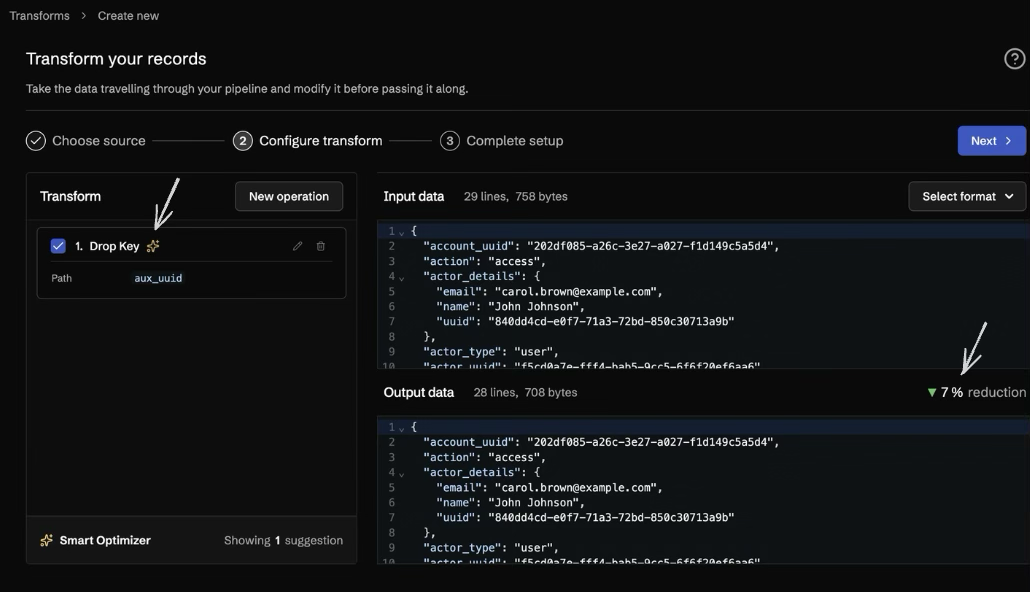
You can accept, edit, or discard each suggestion individually before moving to the next step.
Notes
- Suggestions are based on the sample input data shown in the editor — the quality of suggestions depends on how representative that sample is.
- The Smart Optimizer is a starting point, not a final answer. Always review suggestions before applying them.
- You can run the optimizer multiple times or combine it with manually added operations.