

Organization resource sharing
Share resources you own with the teams in your organization, so they can use them in their own pipelines without duplicating configuration or handling secrets directly.
Overview
Resource sharing lets a top-level organization make selected resources available to its teams. Key concepts:
- Sharing flows one way, from an organization to its teams: a top-level organization shares resources with its teams (child organizations). Teams can use a shared resource but cannot share it onward, and a resource that was shared with you cannot be re-shared.
- Five kinds of resource are shareable: inputs, outputs, transforms, enrichments, and secrets.
- Shared resources are read-only to the receiving team: a team can use a shared resource in its pipelines but cannot edit or delete it. Only the owning organization can change it.
- A resource that is in use is protected: you cannot stop sharing a resource with a team while that team still has something using it.
What you can share
You can share the four component types (inputs, outputs, transforms, and enrichments) as well as secrets. Sharing a secret lets a team reference a credential you manage without ever seeing its value.
Only a top-level organization can share resources out. Teams cannot share, and a resource shared with your organization cannot be shared onward to another organization.
Sharing a resource
There are two ways to share. A resource appears on the Resource Sharing page only after it has been shared at least once, so the first share always starts from the resource itself.
Quick share from a resource
Every shareable resource has a Share action, both in the Actions column of its list page and at the top of its detail page.
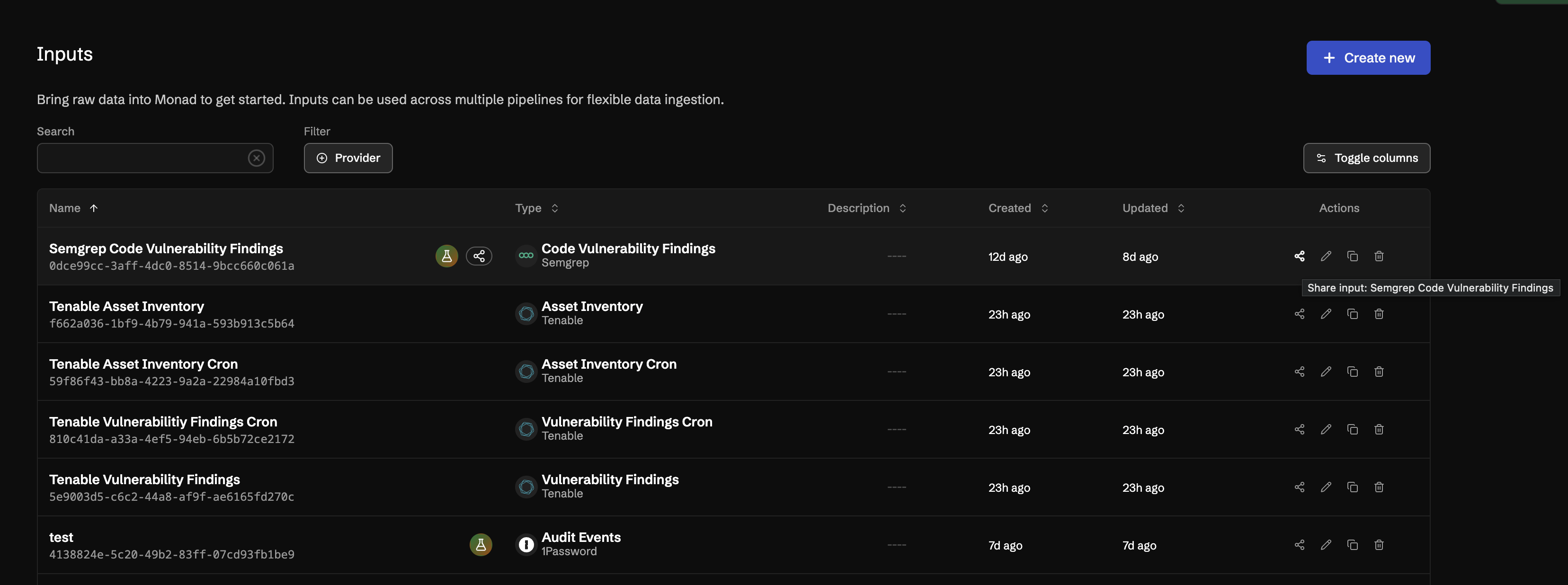

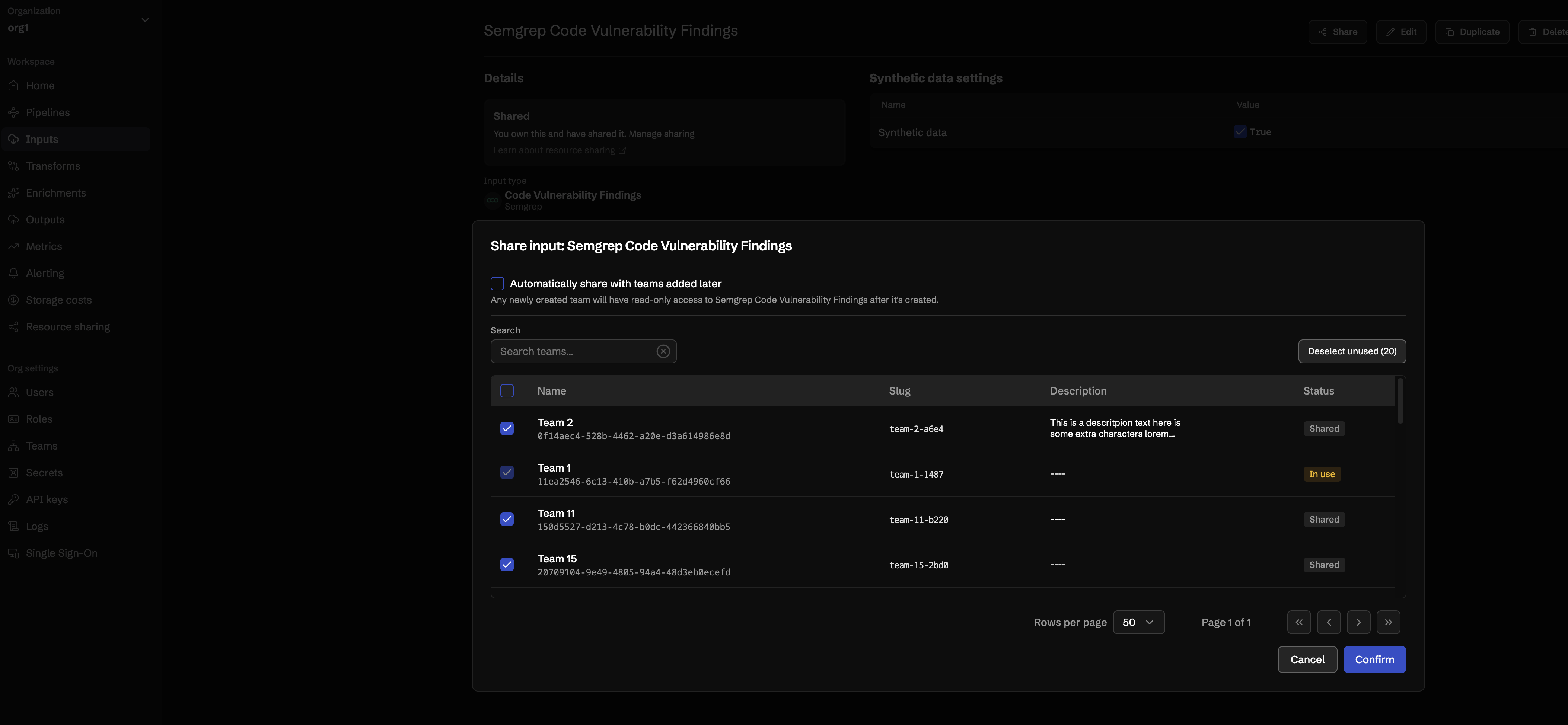
- Open an input, output, transform, enrichment, or secret, or find it in its list.
- Choose Share from its actions.
- In the dialog, check the teams that should have access. Teams already sharing the resource are marked Shared, and teams with something using it are marked In use.
- Click Confirm to apply.
From the Resource Sharing page
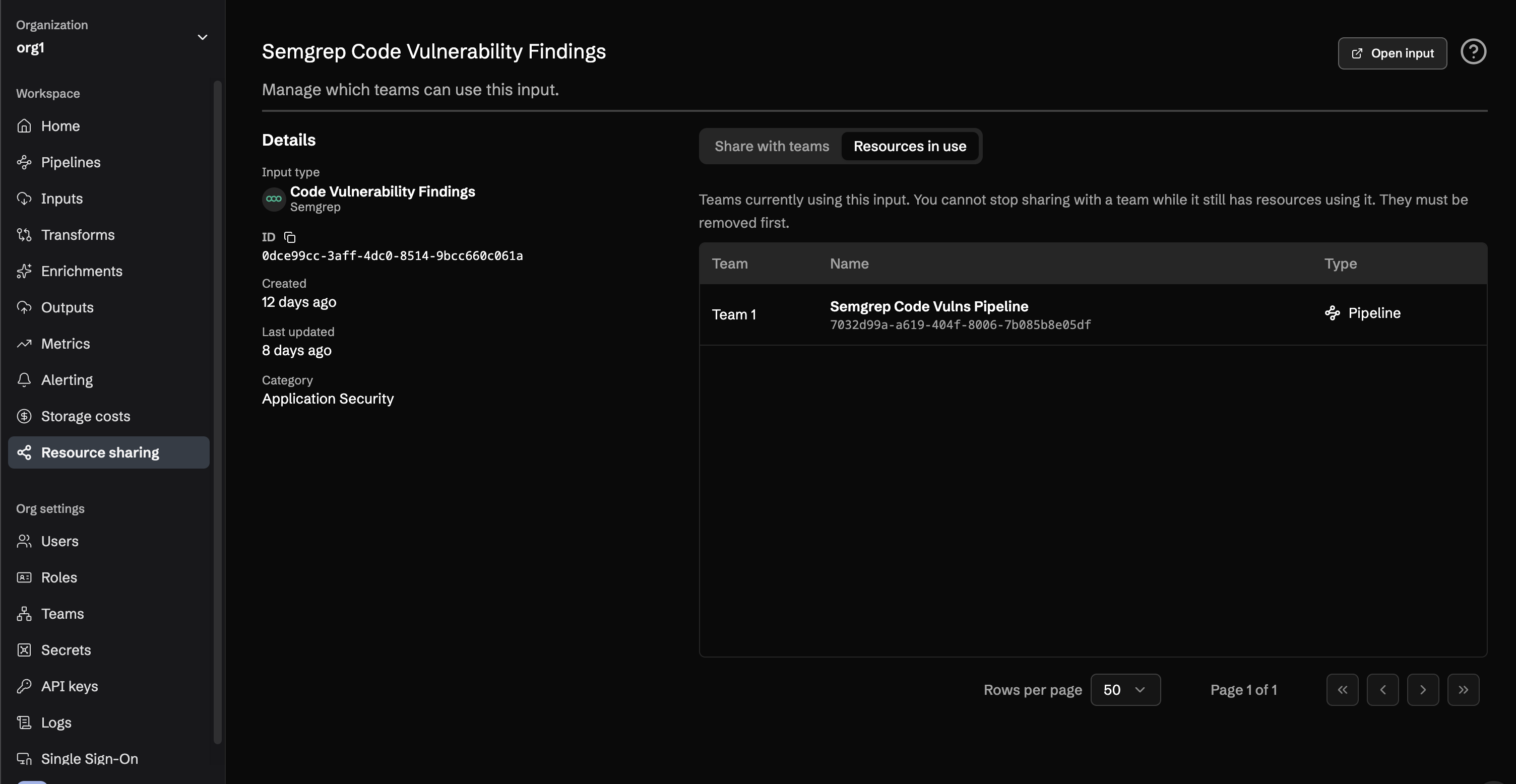
The Resource Sharing page (in the sidebar) lists everything your organization has shared. Select a row to open that resource's sharing detail page.
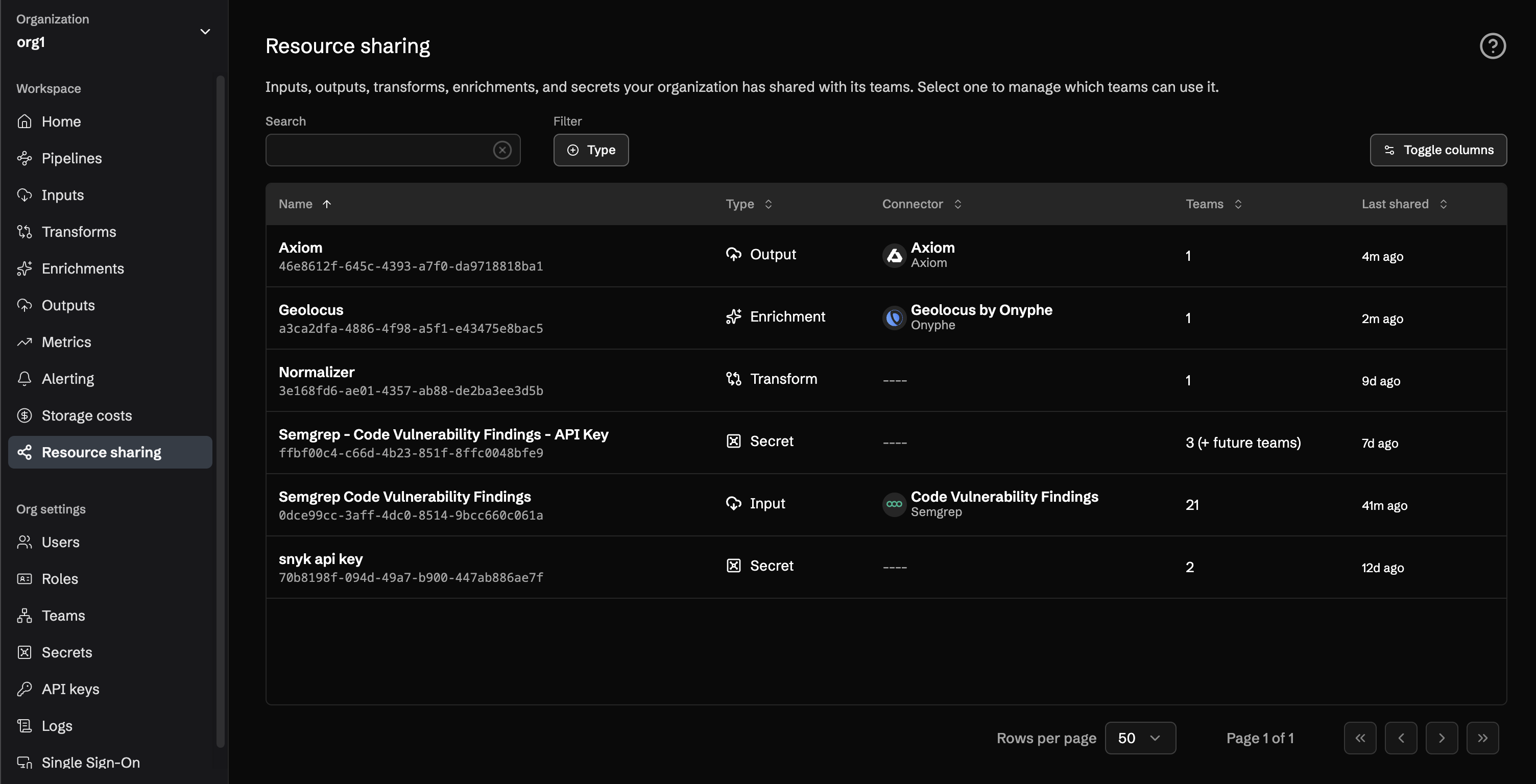
- On the detail page, open the Share with teams tab. It opens read-only, listing the teams that currently have access.
- Click Edit to change access. Check a team to share with it, or uncheck a team to revoke its access.
- A summary describes your pending changes before you commit them (for example, "Sharing with 2 teams and revoking access from 1 team").
- Click Save to apply the changes.
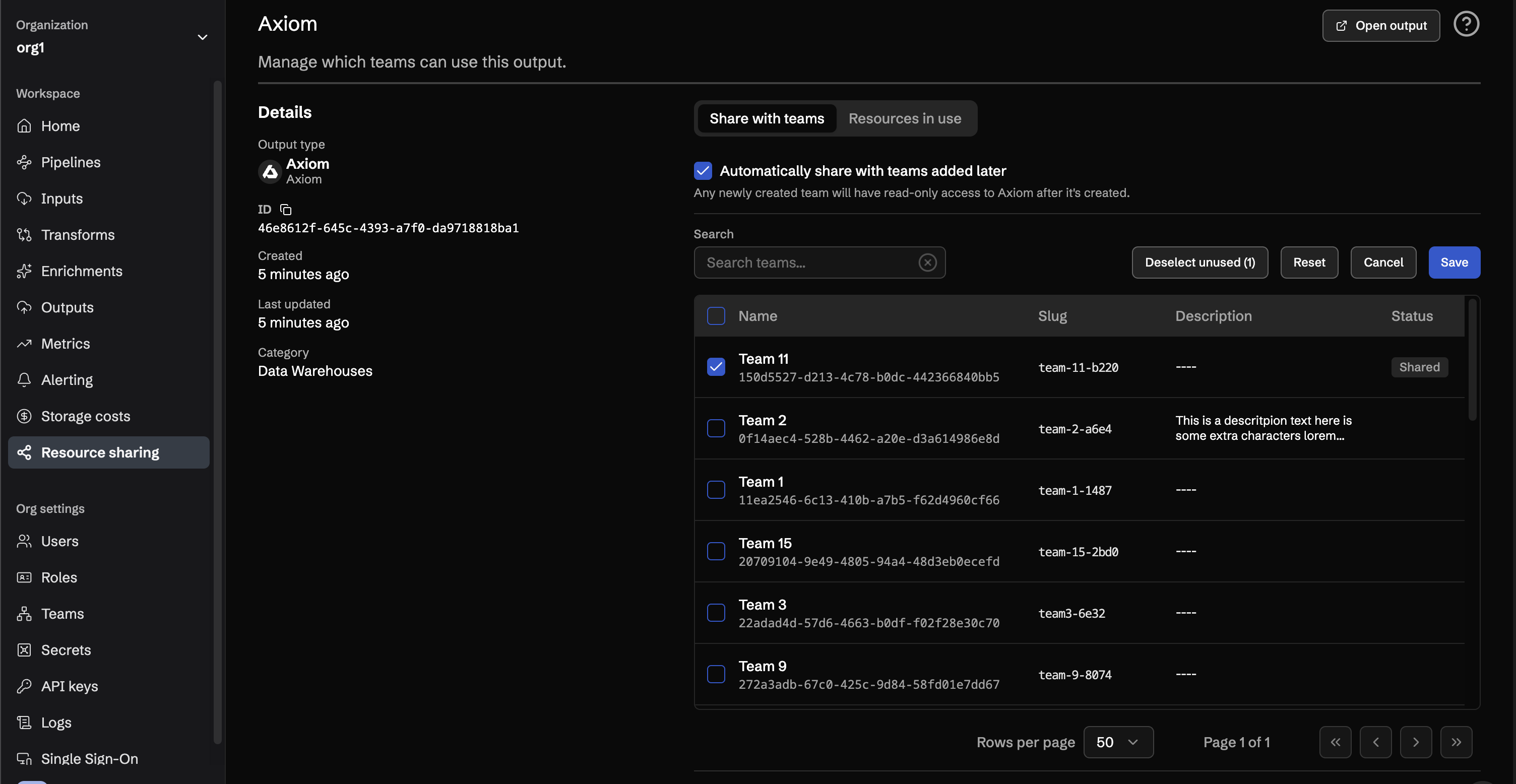
Note: Use Deselect unused to quickly clear every selected team that is not actively using the resource.
Automatically sharing with new teams
Each resource has an Automatically share with teams added later toggle. When it is on, any team created in your organization after that point automatically gets access to the resource. When it is off, new teams are not shared with automatically, and you share with each team explicitly.
In the read-only view this shows as a status line: "Automatically shares with new teams" or "New teams are not shared automatically."
Unsharing and resources in use
To stop sharing a resource with a team, open its Share with teams tab, click Edit, uncheck the team, and Save.
Note: You cannot unshare a resource from a team while that team is still using it. The attempt fails with "Cannot unshare a resource that a team is currently using." Remove the use first, then unshare.
The Resources in use tab lists the teams currently using the resource so you can see what is blocking an unshare. A shared secret is used by a team's components (inputs, outputs, and enrichments); a shared component is used by a team's pipelines.
Working with shared resources as a team
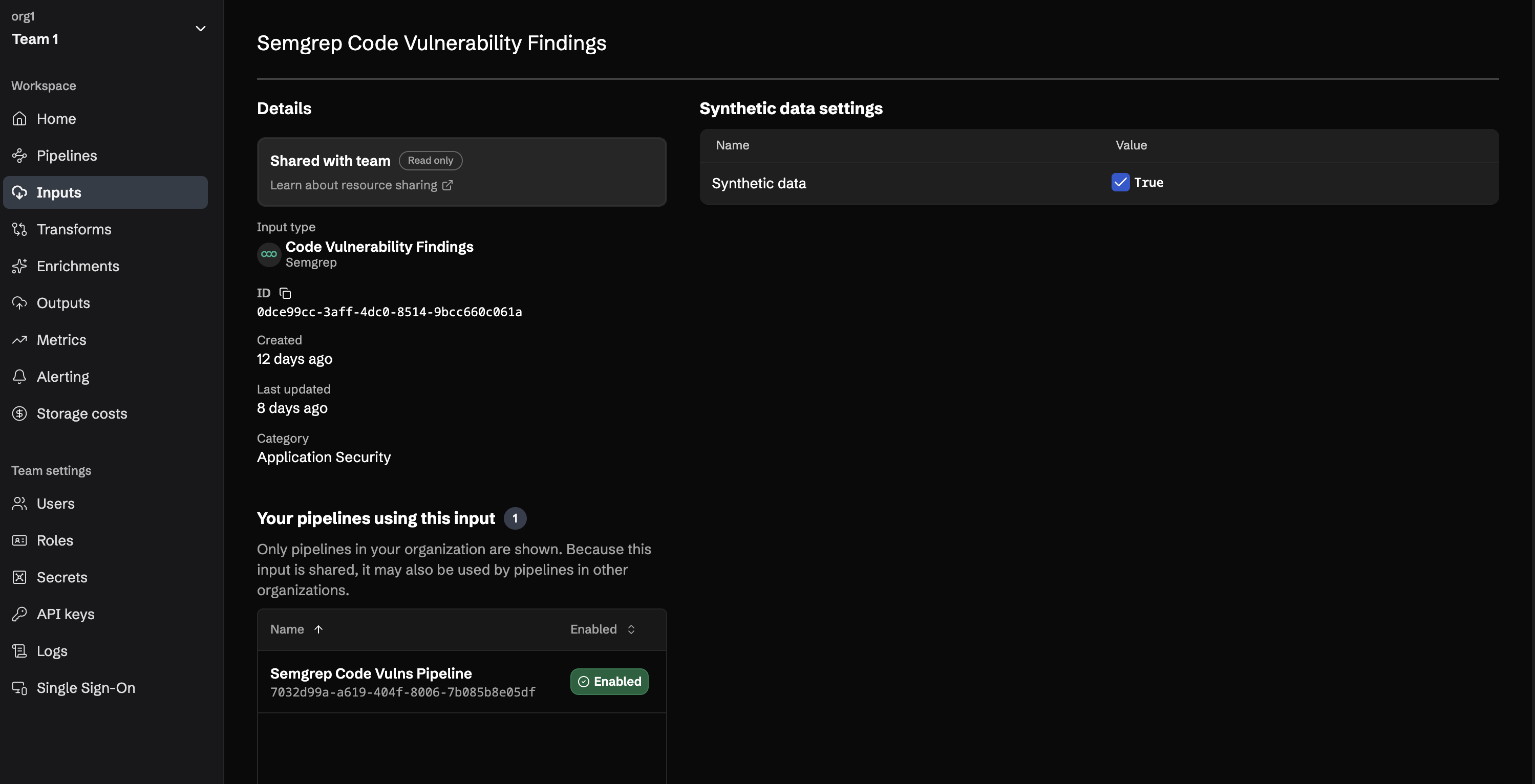
When a resource is shared with your team, it appears in your resource lists with a Shared with team badge, and it is read-only: you can use it but not change it. Teams cannot share resources themselves; only the parent organization that owns a resource can share it.
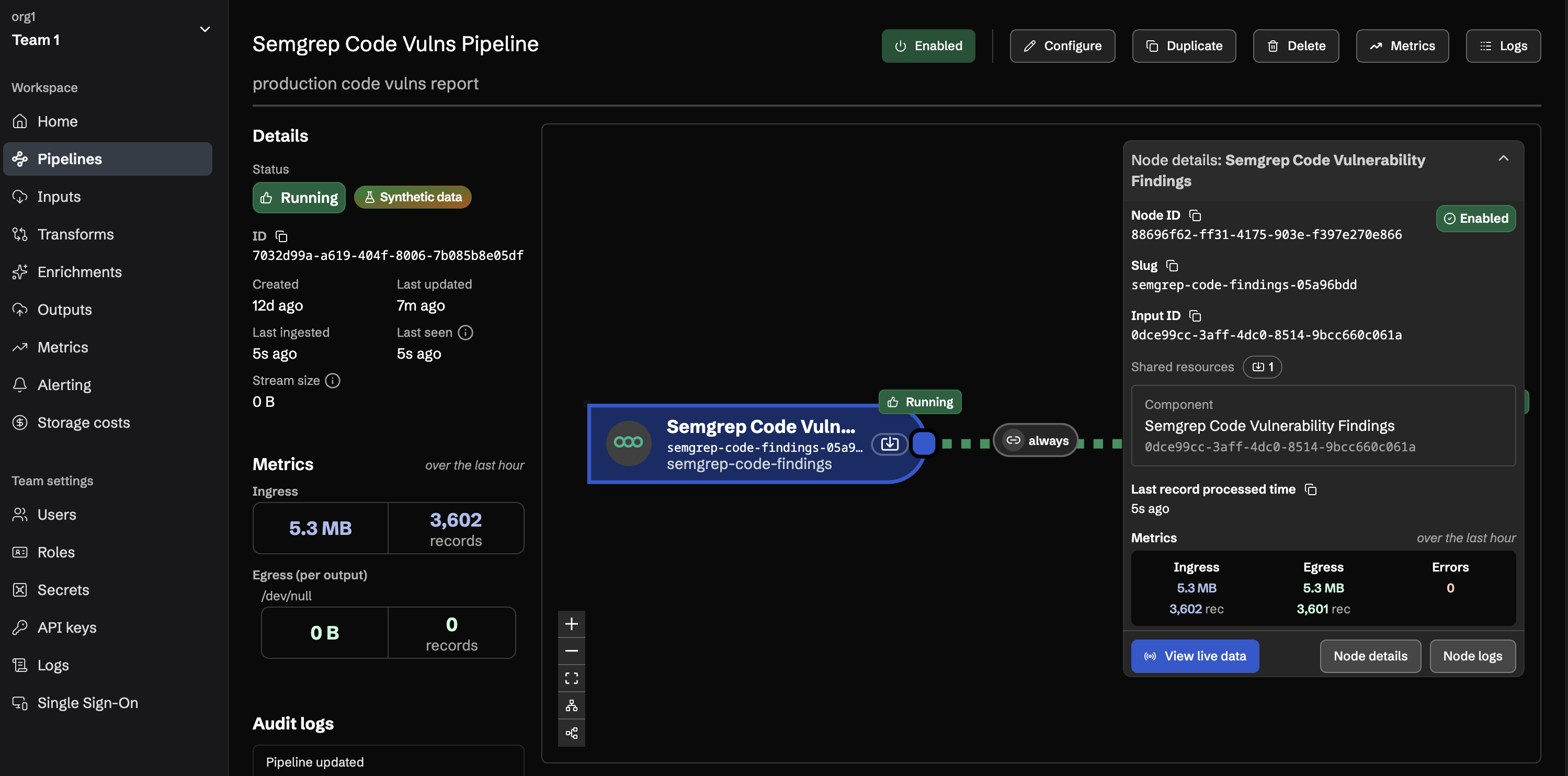
In a pipeline, any node that references a shared resource shows a shared badge with a tooltip, so you can tell at a glance when a node depends on a resource you do not own. The node details panel lists the shared resources the node references.
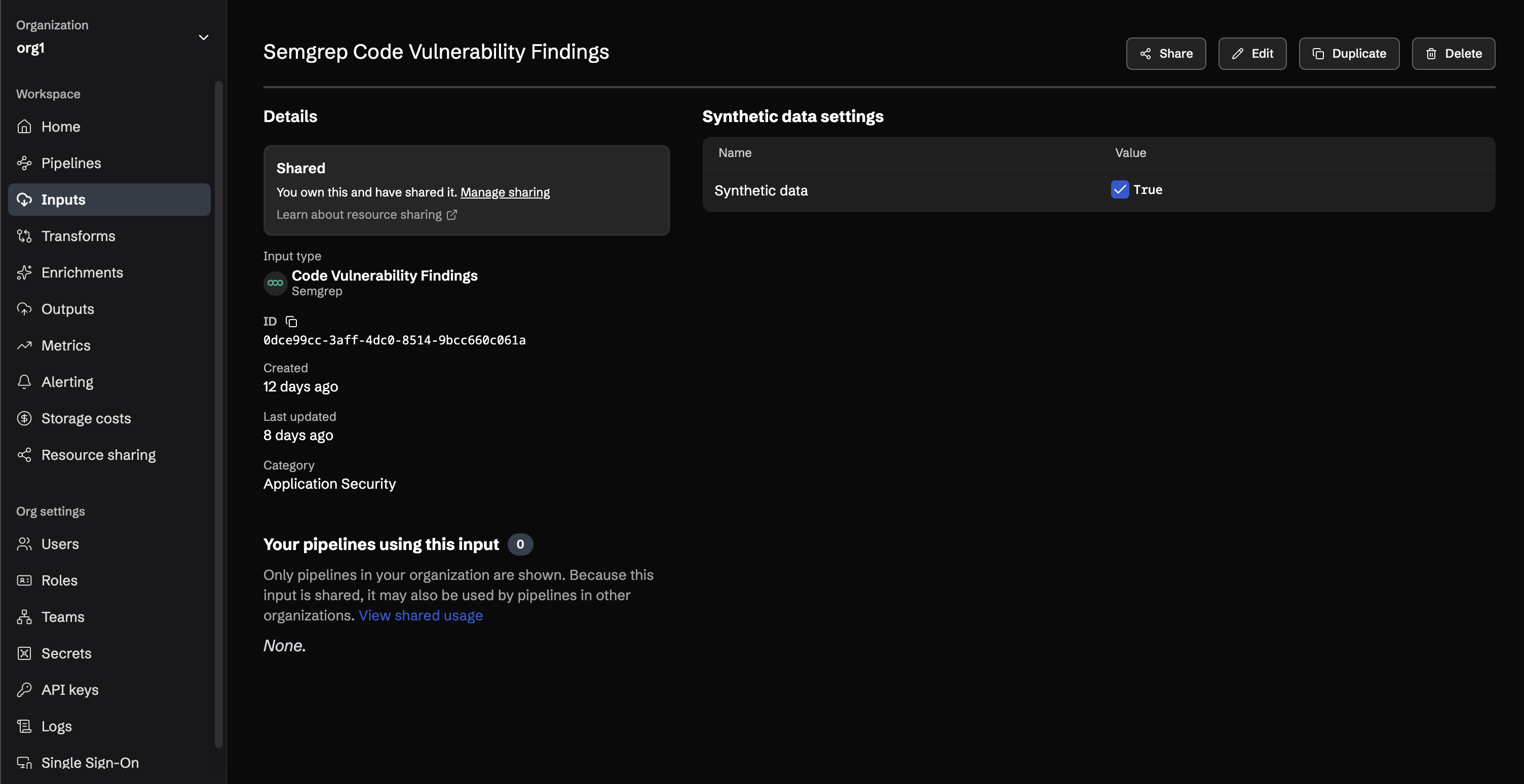
On the owning side, resources your organization has shared show a Shared badge with a Manage sharing link that takes you to the resource's sharing detail page.
Common scenarios
The patterns below combine the features above into complete workflows.
Centrally managed credentials
Your organization owns the credentials for a common destination, such as a Splunk HEC token, and several teams need to deliver events with it. Instead of handing the token to each team:
- Create the secret in your top-level organization.
- Share it with the teams that need it, using either flow from Sharing a resource.
- Each team references the shared secret when configuring its components. It appears in their secret selectors with a shared badge, and its value is never exposed to them.
When the token rotates, update the secret once in the owning organization. Every team's components pick up the new value, with no coordination required.
A standard destination and schema for every team
You want every team's data to land in one governed destination, in one schema, no matter which team built the pipeline:
- Configure the output (for example, an S3 or Snowflake output) in your top-level organization, along with the transform that normalizes records into your standard schema.
- Share both with all of your teams.
- Teams attach the shared output and transform to their own pipelines. Because shared resources are read-only to them, no team can quietly change the destination or drift the schema.
Configuration changes, such as a new bucket prefix or an updated mapping, are made once by the owning organization and apply everywhere the resource is used.
Day-one access for new teams
Your organization creates teams regularly and wants each one productive immediately, without a hand-off checklist:
- Decide on the baseline resources every team should have: typically a destination output, a normalization transform, and the secrets they depend on.
- On each of those resources, enable Automatically share with teams added later.
- When a new team is created, the baseline resources appear in its lists right away, ready to use in its first pipeline. No explicit share step is required.
Note: The toggle only applies to teams created after it is switched on. Share with existing teams explicitly.
Winding down access safely
A team is being retired, or a resource is being replaced, and you want to revoke access without breaking pipelines that still depend on it:
- Open the resource's sharing detail page and check the Resources in use tab to see which teams still use it.
- In the Share with teams tab, click Edit, then use Deselect unused to clear every team that has nothing using the resource.
- For teams still using it, have the dependent pipelines or components removed first, since an unshare is blocked while the resource is in use. Then uncheck those teams and Save.
Working in this order means you never pull a resource out from under a running pipeline.