

Salesforce
PubSub
Consumes events from a given Salesforce PubSub channel.
Overview
The Salesforce PubSub input allows you to consume events from a subscription channel using the Salesforce PubSub GRPC streaming API.
Key Features
- Custom Event Support: Consume from any subscription channel with streaming enabled, including custom events
- Automatic State Tracking: Maintains state to resume consumption after service disruptions
- Historical Event Processing: Processes all available events in the channel on initialization
- Efficient Data Collection: Only collects new events on subsequent runs
How It Works
The input uses state tracking to efficiently collect events:
- Initial Run: Collects all events available in the channel (as far back as the channel's storage retention allows)
- Subsequent Runs: Collects only events that occurred after the last successful run
- State Management: Updates the replay ID with each successfully processed event to track progress
Prerequisites
Before configuring the Salesforce PubSub input, ensure you have:
- Salesforce Account: Access to a Salesforce organization with PubSub API enabled
- PubSub Channel: A subscription channel with streaming and storage enabled
- Administrative Access: Permissions to create External Client Apps and manage OAuth settings
Setup Instructions
Step 1: Creating a Salesforce External Client App
- Log in to your Salesforce account
- Navigate to Setup > Apps > External Client Apps > External Client App Manager
- Click New External Client App on the top right
- Fill in Basic Information section:
- External Client App Name: Your App Name. E.g., "Monad Salesforce PubSub"
- Contact Email: Your email address
- Distribution State: Leave as default "local"
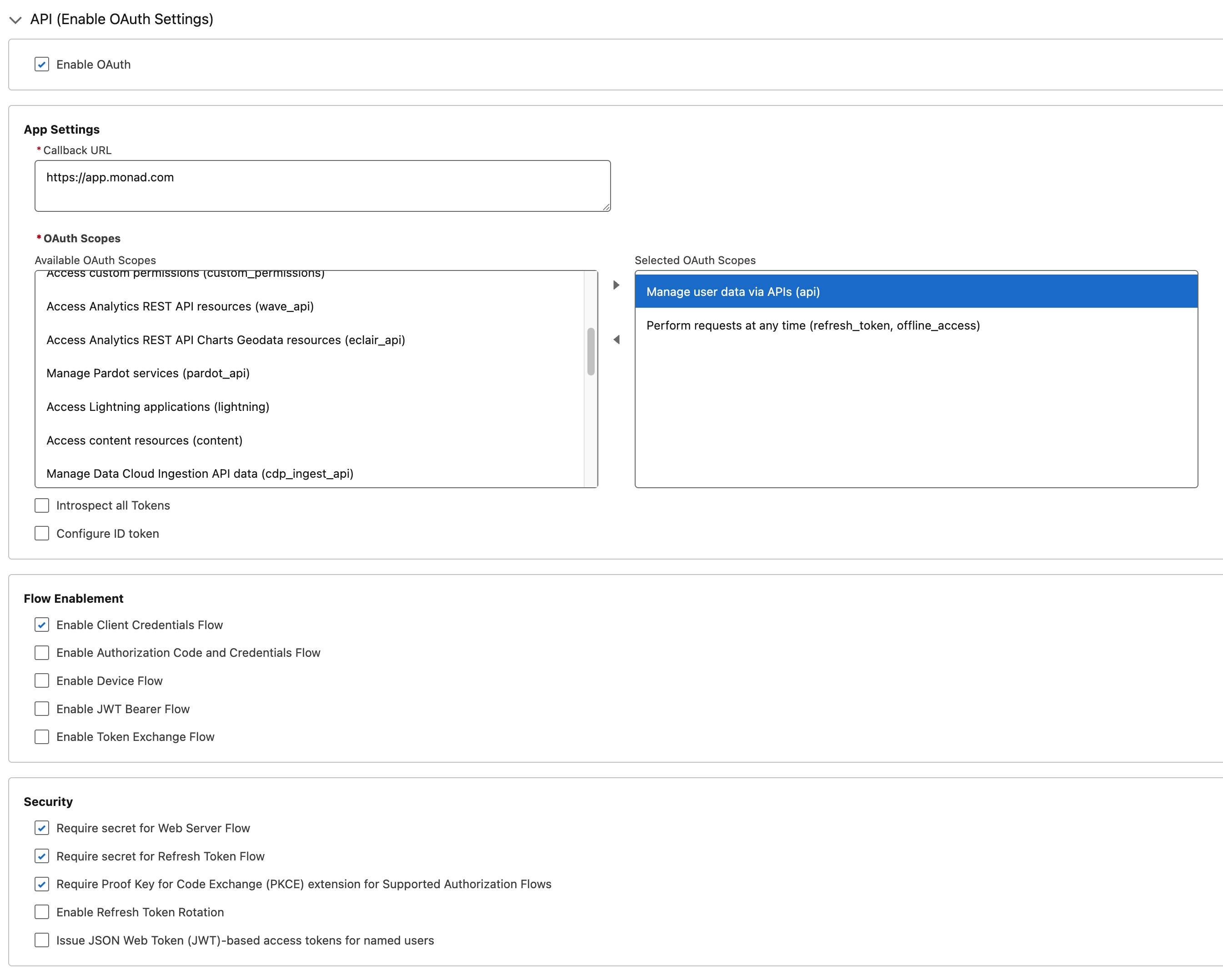
- In API (Enable OAuth Settings) section:
- Check Enable OAuth
- Callback URL:
https://app.monad.com- This can be anything and is not used. It is required by Salesforce.
- OAuth Scopes: Add the following scopes:
Manage user data via APIs (api)Perform requests at any time (refresh_token, offline_access)
- Enable Enable Client Credentials Flow
- All other settings can be left as default
- Click Create
Step 2: Configuring OAuth Policies
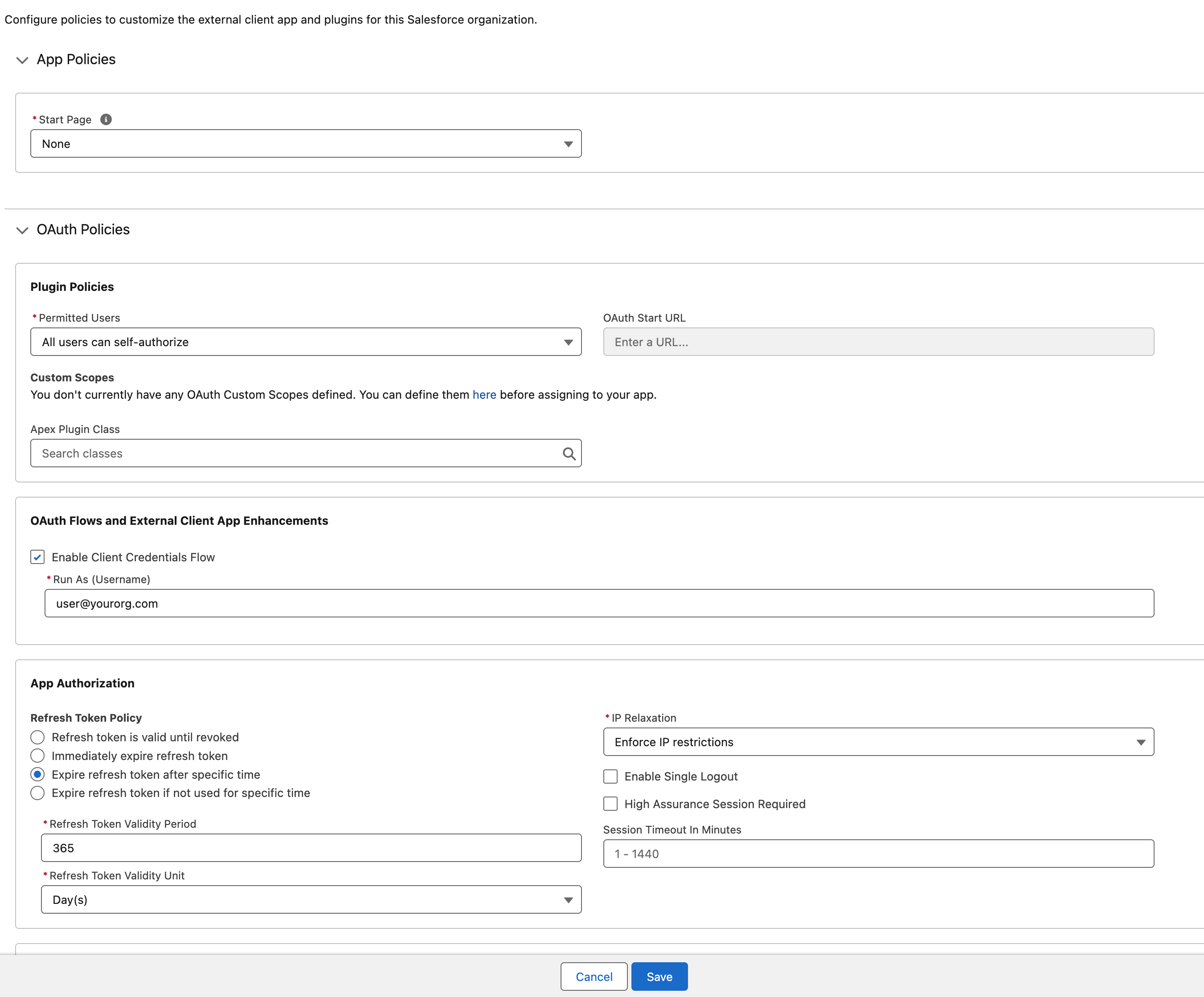
- After creating the app, you will be redirected to the app's detail page
- Click Edit on the top right
- In the OAuth Policies section:
- Enable Enable Client Credentials Flow
- Set Run As to an appropriate user with access to the PubSub channel
- All other settings can be left as default
- Click Save
Step 3: Retrieving Client Credentials
- From the new External Client App's detail page, navigate to Settings > OAuth Settings
- Click Consumer Key and Secret
- Verification may be required before viewing the secrets
- Copy the Consumer Key and Consumer Secret.
- These will be used as the Client ID and Client Secret in the input configuration.
Configuration
Required Settings
| Setting | Type | Description | How to Find |
|---|---|---|---|
| DomainURL | string | Domain URL for your Salesforce instance | Setup > Company Settings > My Domain → Current My Domain URL |
| OrganizationID | string | Organization ID for your Salesforce instance | Setup > Company Settings > Company Information → Salesforce.com Organization ID |
| Topic | string | Pub/Sub topic to subscribe to | Setup > Events > Event Manager > Subscription Channel |
Required Secrets
| Secret | Description |
|---|---|
| Client ID | OAuth Client ID from the External Client App (Consumer Key) |
| Client Secret | OAuth Client Secret from the External Client App (Consumer Secret) |
Technical Details
API Integration
This input uses the Salesforce Pub/Sub API via GRPC endpoints:
- Primary Method:
Subscribe- Consumes events from the subscription channel - Supporting Methods:
GetTopic- Verifies topic accessibility and configurationGetSchema- Retrieves the schema for message decoding
Authentication & Rate Limiting
- Authentication: OAuth 2.0 Client Credentials flow
- Rate Limiting: Automatically respects Salesforce's API rate limits
- Connection Management: Maintains persistent GRPC streaming connections
Troubleshooting
Common Issues
- No Events Returned
- Check that the channel has streaming enabled in Setup > Events > Event Manager
- Missing Events or Gaps in Events
- Ensure the channel has storage enabled to retain events in Setup > Events > Event Manager
- Authentication Errors
- Verify Enable Client Credentials Flow is enabled in both the External Client App Settings and OAuth Policies
Related Articles
Sync frequency
This input consumes from the source queue or subscription, ingesting records at whatever rate the source delivers them rather than on a fixed poll. See Input Sync Frequency for details.
Last modified on