

Azure Blob Storage
Enables real-time ingestion of objects written to an Azure Blob Storage container for continuous data processing.
Requirements
To configure Azure Blob Storage as an input source for Monad, complete the following steps:
Step 1: Create Microsoft Entra Application
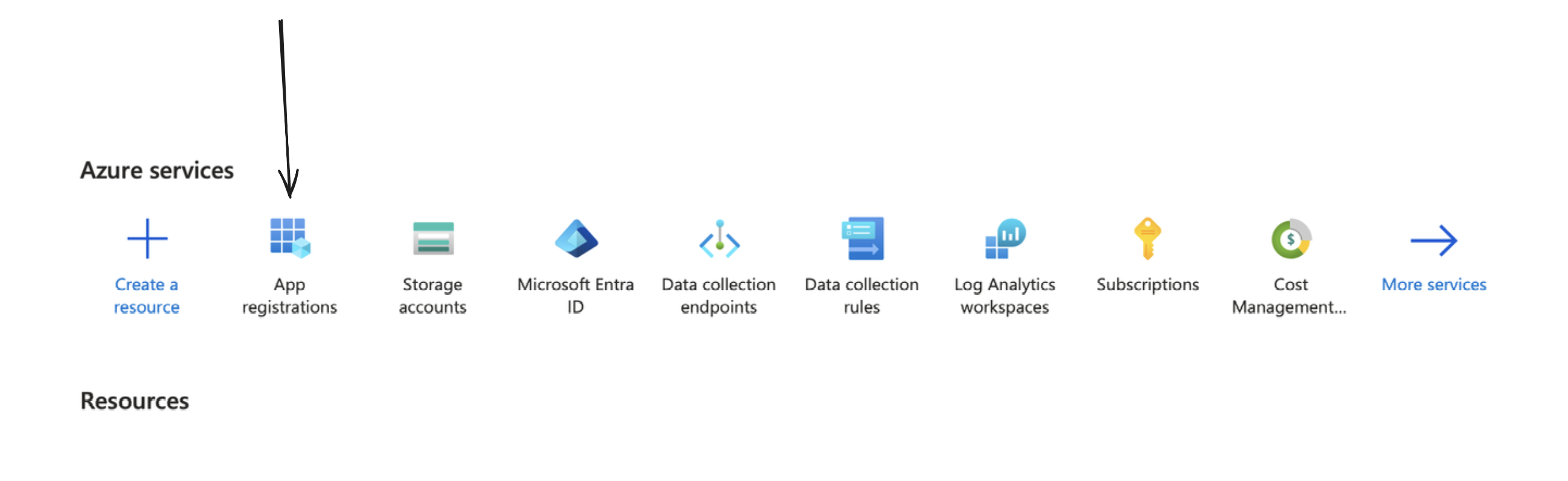
You can create one by going to your Azure portal, and clicking on/searching for App Registrations.
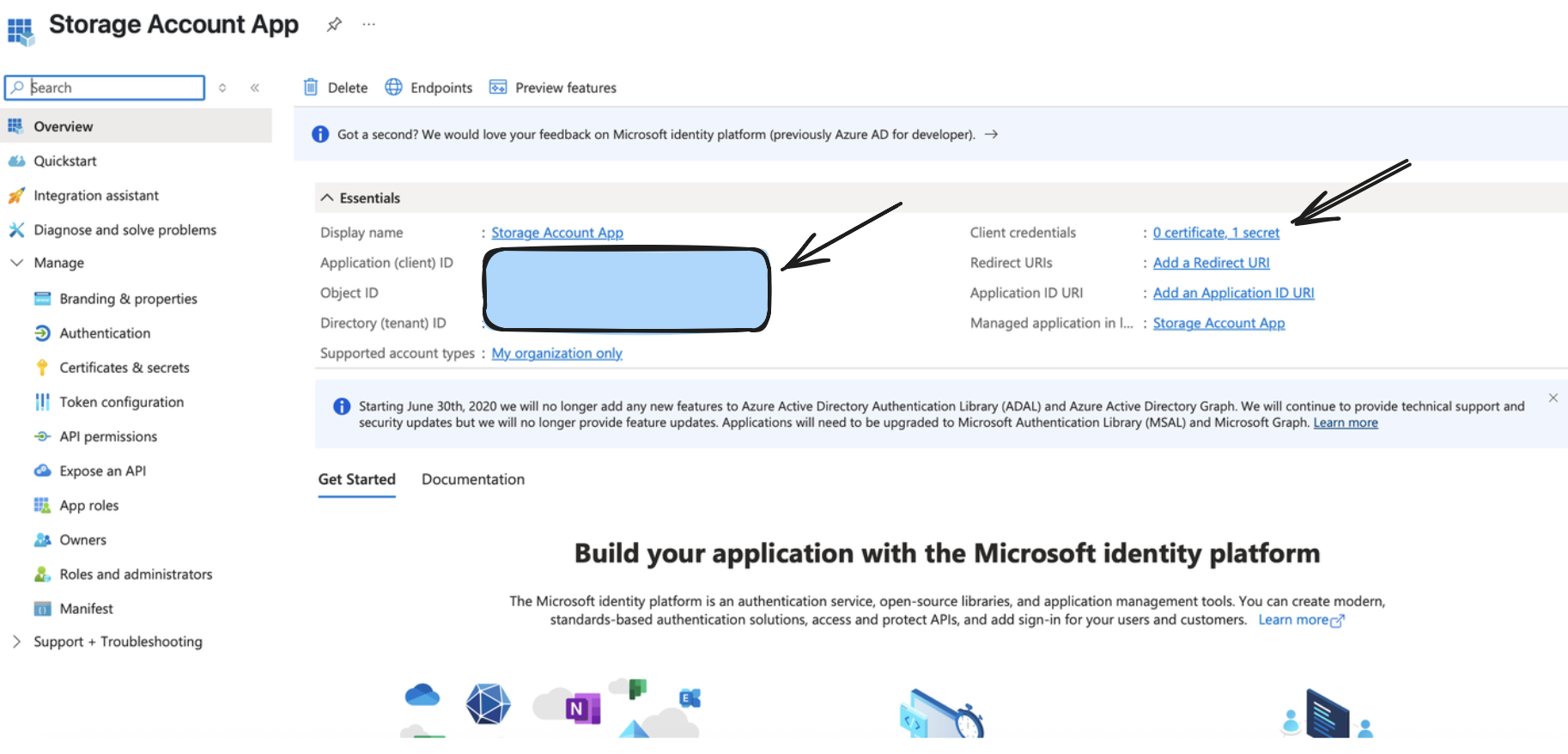
From the above step, you would receive a valid Application (Client) ID, Directory (Tenant ID), and a Client Secret Value, which would be used as a part of setting up the input connector.
Step 2: Create/Configure a Storage Account
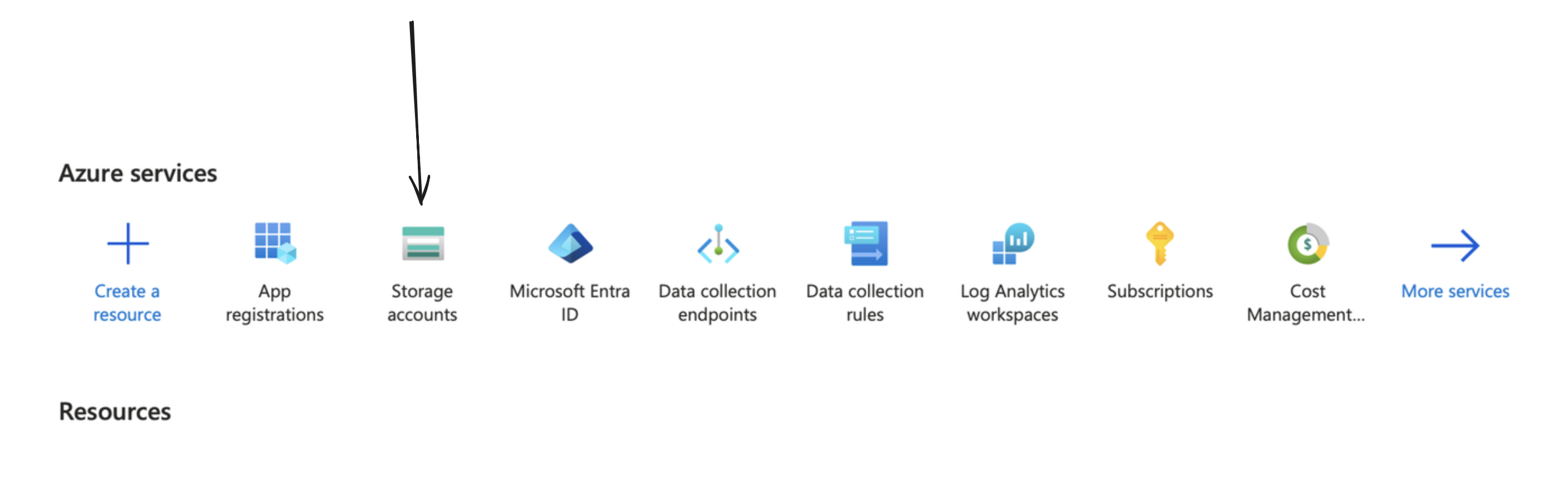
You can create one by going to your Azure portal, and clicking on/searching for Storage Accounts.
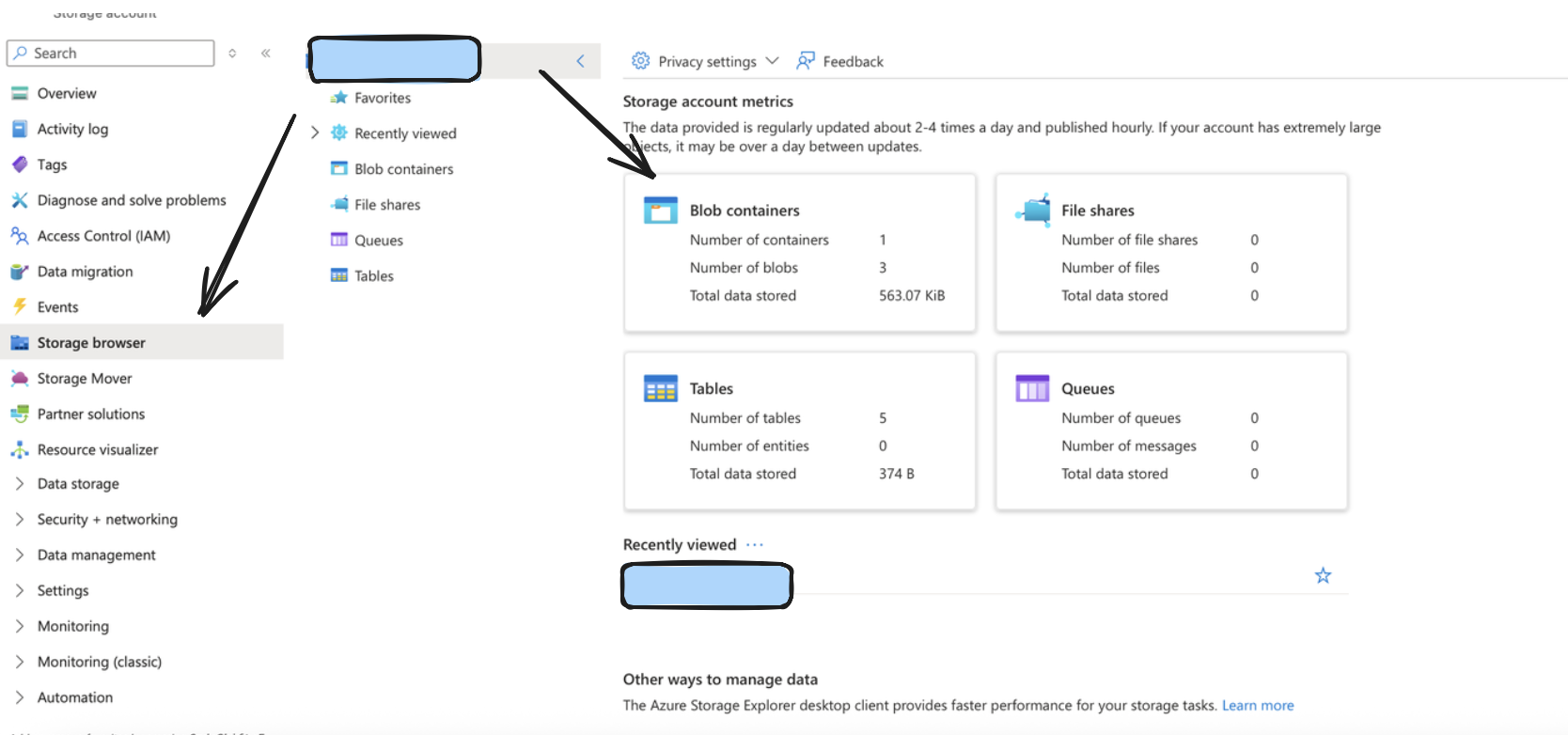
After doing so, create a container by going to the storage browser on the left sidebar, and choosing the Blob Containers widget. The name of your storage account in the format https://account_name.blob.core.windows.net typically would be your Account URL.
Step 3: Setup Appropriate permissions
Monad requires specific permissions to read data from your Azure Blob Storage container. Follow the below steps to do so.
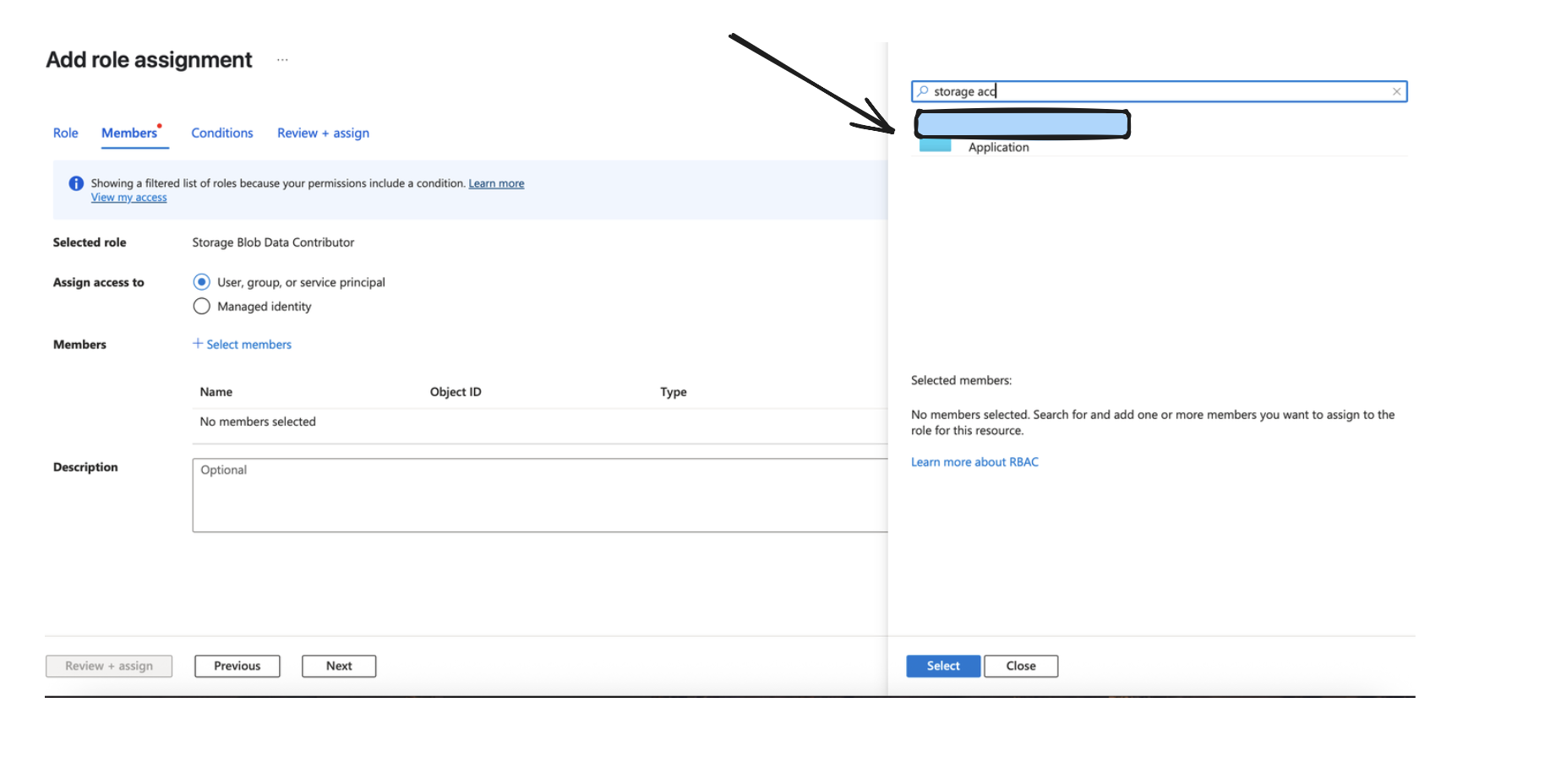
Retrieve the exact name from the App created/being used from under App Registrations like we did before.
After doing so, go to your storage account, and under IAM, click on Add to add a new Role Assignment.
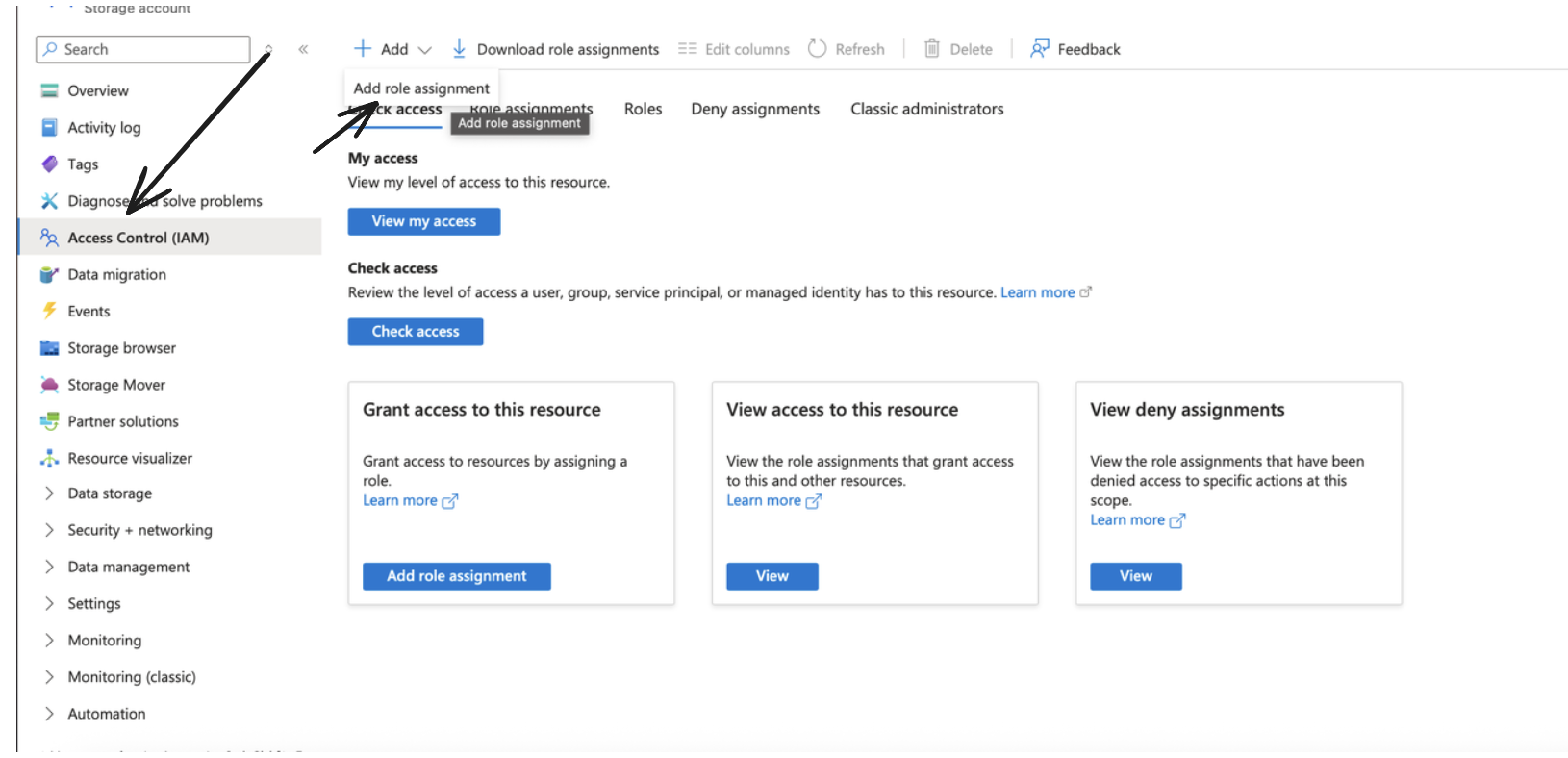
Make sure to choose the Storage Blob Data Reader role and click next.
Assign Access to the Application like done in the Image below, and go ahead and add the role assignment.
Network access (restricted storage accounts)
If your Azure Storage account restricts public network access with a firewall (Networking → Firewalls and virtual networks), Monad's cluster must be explicitly allowed to reach it.
Why IP allowlisting fails for same-region clusters
If your Monad cluster runs in the same Azure region as your Azure Storage account, adding Monad's public IP to the allowlist will not work. Azure routes same-region requests over its internal network, so the storage account sees a private source IP that a public-IP allowlist rule can never match. This is documented Azure platform behavior:
"You can't use IP network rules to restrict access to clients in the same Azure region as the storage account. IP network rules have no effect on requests that originate from the same Azure region. Use Virtual network rules to allow same-region requests."
Resolution: allow Monad's subnet with a virtual-network rule
Because same-region traffic arrives with a private IP, you must allow Monad by subnet identity rather than by IP, using a VNet Service Endpoint:
- Monad provisions a VNet Service Endpoint for
Microsoft.Storageon the subnet of the Monad cluster running your connector. Contact Monad Customer Support to have this enabled and to obtain the subnet resource ID (the subnet lives in a Monad-managed VNet). - Add that subnet to your Storage Account's allowed virtual networks: Storage Account → Networking → Firewalls and virtual networks → Add existing virtual network. With the Service Endpoint in place, requests from Monad are recognized as coming from an allowed virtual network instead of an unmatchable private IP.
- Save. Access from Monad should succeed once the rule propagates.
If the portal won't let you add the subnet
The Azure portal only lets you add a virtual network/subnet you have read access to. Because the Monad cluster's VNet is Monad-managed, you likely won't see it in the portal picker. Add the rule with the Azure CLI instead:
Code
Monad Customer Support will provide the <monad-cluster-subnet-resource-id>.
This affects any Monad deployment running on Azure (AKS) — shared-tenancy SaaS as well as dedicated clusters — whenever your Azure Storage account is in the same Azure region as the AKS cluster running the connector. Deployments where Monad and the storage account are in different regions are unaffected (public-IP allowlisting works normally there).
Details
When the input is run for the first time, its starting point depends on the Backfill Start Time setting: if a Backfill Start Time is set, the input fetches files from that time forward; if it is left unset, the input starts from the time of the first run and fetches no past records (matching the field description below). After each successful page of objects is processed, the processor checkpoints its state by saving:
- The highest LastModified timestamp encountered
- The lexicographically greatest Blob key at that timestamp
On subsequent runs, the processor performs an incremental sync starting from last checkpoint timestamp. On restart in case of any form of failure, we resume from the day prefix of the last checkpointed timestamp. A checkpoint occurs at every page within a prefix. So while processing a prefix, if a failure occurs, the processor will restart from the last completed page's checkpoint. This means that while you may not lose out on records, you may re-process some records within the last page in case of any catastrophic failures.
-
To avoid this, we recommend publishing Blob data to a queue that can be consumed from to avoid such failures.
-
Please also note we rescan and drop all data based on our deduplication logic on every single sync which occurs in a day prefix. This means that for larger containers, this may lead to hitting rate limits since we will be scanning the same data a large number of times in a day. To avoid this, we recommend publishing Blob data to a queue that can be consumed from to avoid such scenarios.
-
Append blobs are not treated as incremental. If data is appended to an existing blob, the input reprocesses the entire blob (not just the appended data), which will re-emit records that were already ingested from that blob. To avoid duplicate processing, write new data as new blobs rather than appending to existing ones.
-
Prefixes must be hive compliant/flat hive compliant/simple date always. Anything other than this can cause unexpected behavior in the input.
-
Each log's last updated time should be on the same date as the logical prefix itself. so any object that lands in the 2025/08/10 prefix should have a last updated time of 2025/08/10 (in its ISO8601 format). Not doing so can cause unexpected behavior in the input.
-
To avoid such tight boundaries, we recommend publishing Blob data to a queue that can be consumed from to avoid such failures.
Configuration
Settings
| Setting | Type | Required | Default | Description |
|---|---|---|---|---|
| Container | string | Yes | - | A container organizes a set of blobs, similar to a directory in a file system |
| Account URL | string | Yes | - | Represents your storage account in Azure. Typically of the format https://account_name.blob.core.windows.net. |
| Azure Object Prefix | string | No | - | An optional prefix for Azure object keys to organize data within the container |
| Format | string | Yes | json | File format of the objects to read (e.g., json). See Format Options below. |
| Compression Method | string | Yes | - | The compression format of the objects in the container (e.g., gzip, snappy, none). |
| Partition Format | string | Yes | simple date | Partition layout of your container. Options: hive compliant, flat hive compliant, or simple date. |
| Record Location | string | No | - | Location of the record in the JSON object. See Record Location for syntax and examples. |
| Backfill Start Time | string | No | - | The date to start fetching data from. If not specified, no past records will be fetched. |
Format Options
The format tells Monad how to parse the objects it reads from the container. Configure exactly one format type; see the format reference here: Formats.
Partition Format Options
- Simple Date Format (
simple_date):
- Structure:
{prefix}/{YYYY}/{MM}/{DD}/{filename} - Example:
my-data/2024/01/15/20240115T123045Z-uuid.json.gz - Use case: Straightforward date-based organization
- Hive-Compliant Format (
hive_compliant):
- Structure:
{prefix}/year={YYYY}/month={MM}/day={DD}/{filename} - Example:
my-data/year=2024/month=01/day=15/20240115T123045Z-uuid.parquet - Use case: Compatible with Athena, Hive, and other query engines that expect this partitioning scheme
- Flat Hive Compliant Format (
flat hive compliant):
- Structure:
{prefix}/dt={YYYY-MM-DD}/{filename} - Example:
my-data/dt=2024-01-15/20240115T123045Z-uuid.json.gz - Use case: Single-key hive-style date partition
All partition formats use UTC time for consistency across different time zones.
Secrets
| Secret | Type | Required | Description |
|---|---|---|---|
| Tenant ID | string | Yes | The Azure Active Directory tenant (directory) ID. |
| Client ID | string | Yes | The application (client) ID registered in Azure Active Directory. |
| Client Secret | string | Yes | The client secret associated with the registered application in Azure AD. |
Sync frequency
This input polls on a connector-specific interval, adjusting between about 10 seconds and 5 minutes depending on the backlog. A cron schedule configured on the pipeline overrides this cadence. See Input Sync Frequency for details.