# Okta
# Okta SSO Configuration
This guide walks you through configuring Okta as your Single Sign-On (SSO) provider for Monad.
## Prerequisites
- Okta administrator access
- Monad organization admin privileges
## Step 1: Create a SAML Application in Okta
1. Log in to your Okta Admin Console
2. Navigate to **Applications** > **Applications**
3. Click **Create App Integration**
4. Select **SAML 2.0** and click **Next**
### General Settings
- **App name**: `Monad`
- **App logo** (optional): Upload your organization's logo
- Click **Next**
## Step 2: Configure SAML Settings
1. Navigate to the SSO settings in the side-panel of your Monad Organization
2. Click **Create New**
3. Name your connection (Okta) and give it a description (optional)
4. Copy the value of **Monad SAML SSO URL** and paste it into the Okta **Single sign-on URL** field
5. Copy the value of the **SAML Entity ID** and paste it into the Okta **Audience URI (SP Entity ID)** field
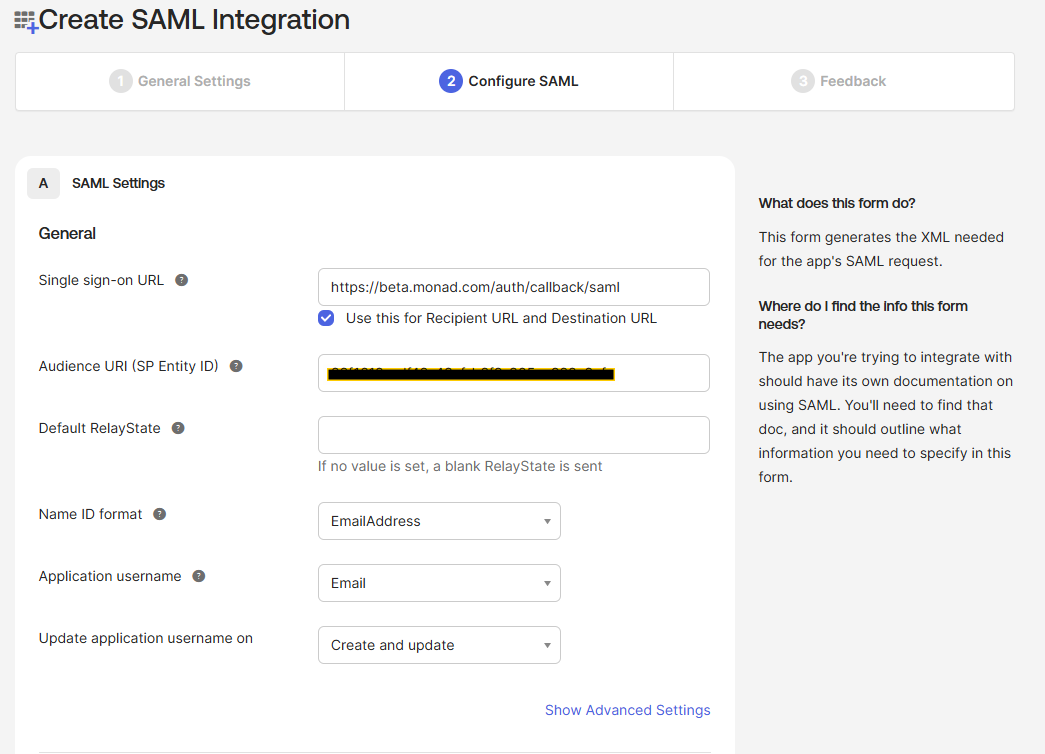 - **Default Relay State** (optional): Leave blank
- **Name ID format**: `EmailAddress`
- **Application username**: `Email`
6. Leave this window open, you'll need to add a value from Okta into your configuration
## Step 3: Assign Users (Optional)
1. In the **Assignments** tab of your Monad application
2. Click **Assign** > **Assign to People** or **Assign to Groups**
3. Select the users or groups that should have access to Monad
4. Click **Assign** and **Save and Go Back**
## Step 4: Configure Monad
1. Navigate to the Sign On tab in your Okta application
2. Copy the Metadata URL value and paste it into the SAML Metadata URL in the Monad Application.
- **Default Relay State** (optional): Leave blank
- **Name ID format**: `EmailAddress`
- **Application username**: `Email`
6. Leave this window open, you'll need to add a value from Okta into your configuration
## Step 3: Assign Users (Optional)
1. In the **Assignments** tab of your Monad application
2. Click **Assign** > **Assign to People** or **Assign to Groups**
3. Select the users or groups that should have access to Monad
4. Click **Assign** and **Save and Go Back**
## Step 4: Configure Monad
1. Navigate to the Sign On tab in your Okta application
2. Copy the Metadata URL value and paste it into the SAML Metadata URL in the Monad Application.
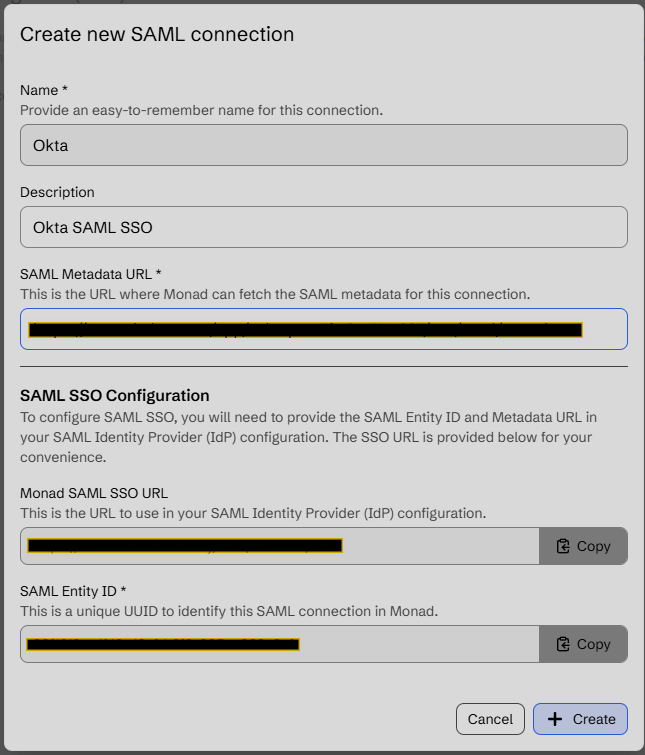 3. Click **Create**
## Testing Your Configuration
1. Open your Okta Dashboard and click the Monad Application you just created (Make sure to assign it to yourself if you didn't do this before)
You should be redirected to the Monad application and signed in automatically
## Troubleshooting
### Common Issues
**Users can't access Monad after SSO login**
- Verify user assignments in Okta
- Check that email addresses match between Okta and Monad
**SSO redirect fails**
- Confirm the Single sign-on URL is correct
- Verify the Audience URI matches your Monad configuration
**Authentication errors**
- Verify attribute mappings are configured correctly
## Additional Info
[Adding an Okta Application](https://help.okta.com/oag/en-us/content/topics/access-gateway/add-app-saml-pass-thru-add-okta.htm)
3. Click **Create**
## Testing Your Configuration
1. Open your Okta Dashboard and click the Monad Application you just created (Make sure to assign it to yourself if you didn't do this before)
You should be redirected to the Monad application and signed in automatically
## Troubleshooting
### Common Issues
**Users can't access Monad after SSO login**
- Verify user assignments in Okta
- Check that email addresses match between Okta and Monad
**SSO redirect fails**
- Confirm the Single sign-on URL is correct
- Verify the Audience URI matches your Monad configuration
**Authentication errors**
- Verify attribute mappings are configured correctly
## Additional Info
[Adding an Okta Application](https://help.okta.com/oag/en-us/content/topics/access-gateway/add-app-saml-pass-thru-add-okta.htm)