# Team Access Logs
Retrieves workspace access logs from Slack, providing visibility into user login activity and session information.
**Sync Type: Incremental**
## Overview
The Slack Team Access Logs input collects comprehensive access log data from your workspace, capturing user authentication events, session details, and geographic information. This data is crucial for security monitoring, detecting anomalous access patterns, compliance reporting, and understanding user behavior across your organization.
## Prerequisites
- A Slack workspace with API access
- Admin or Owner permissions to create and install apps
- User OAuth Token with the `admin` scope
## OAuth Token Setup
To access Slack Team Access Logs, you need to create a Slack app with the appropriate OAuth scopes.
### 1. Create a Slack App
1. **Navigate to Slack API**
- Go to [https://api.slack.com/apps](https://api.slack.com/apps)
- Sign in with your Slack account
2. **Create New App**
- Click **Create New App**
- Choose **From scratch**
- Provide an app name (e.g., "Access Logs Collector")
- Select your Slack workspace
- Click **Create App**
- You will be redirected to the "Basic Information" page
### 2. Grant Permissions
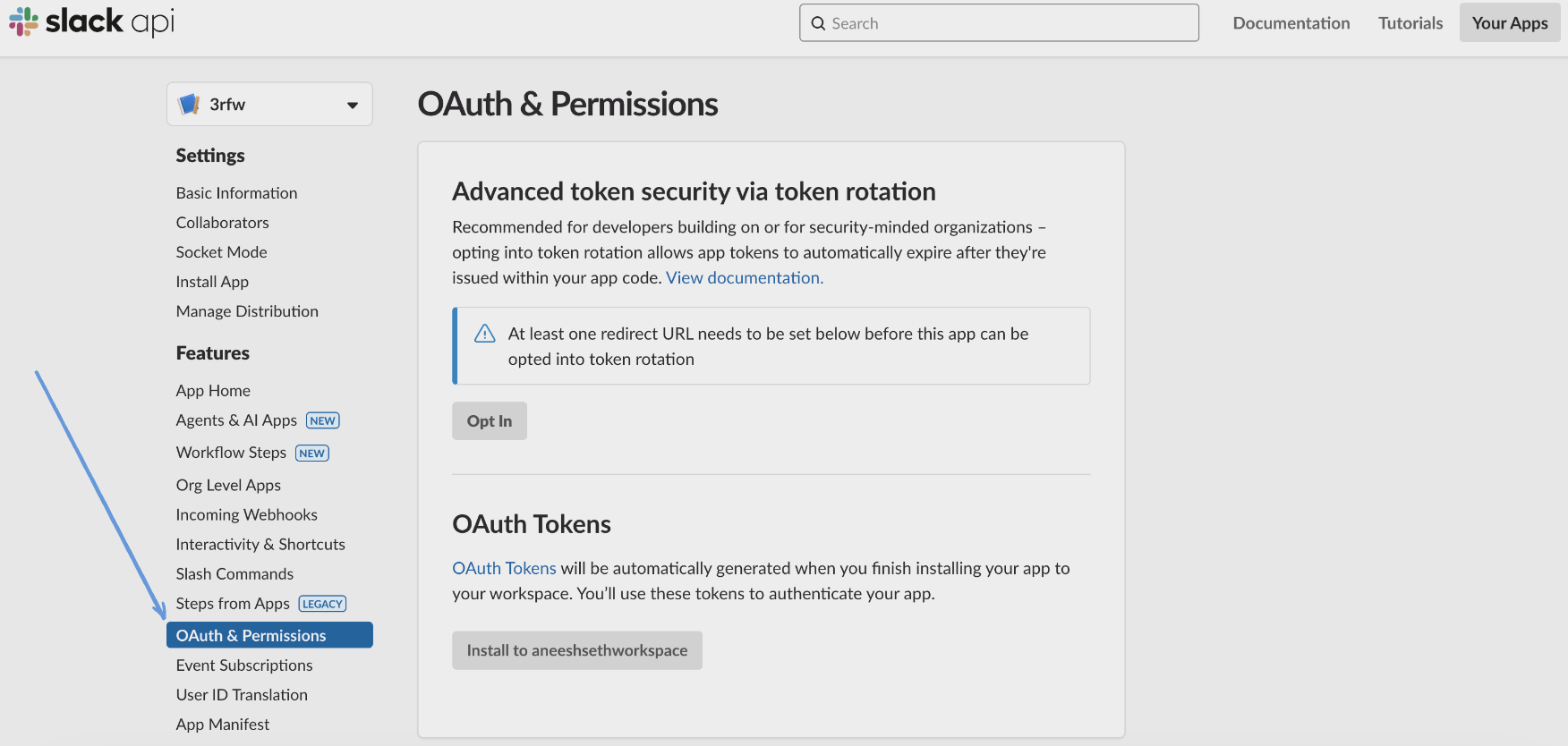
1. **Navigate to OAuth & Permissions**
- In the left sidebar, click **OAuth & Permissions**
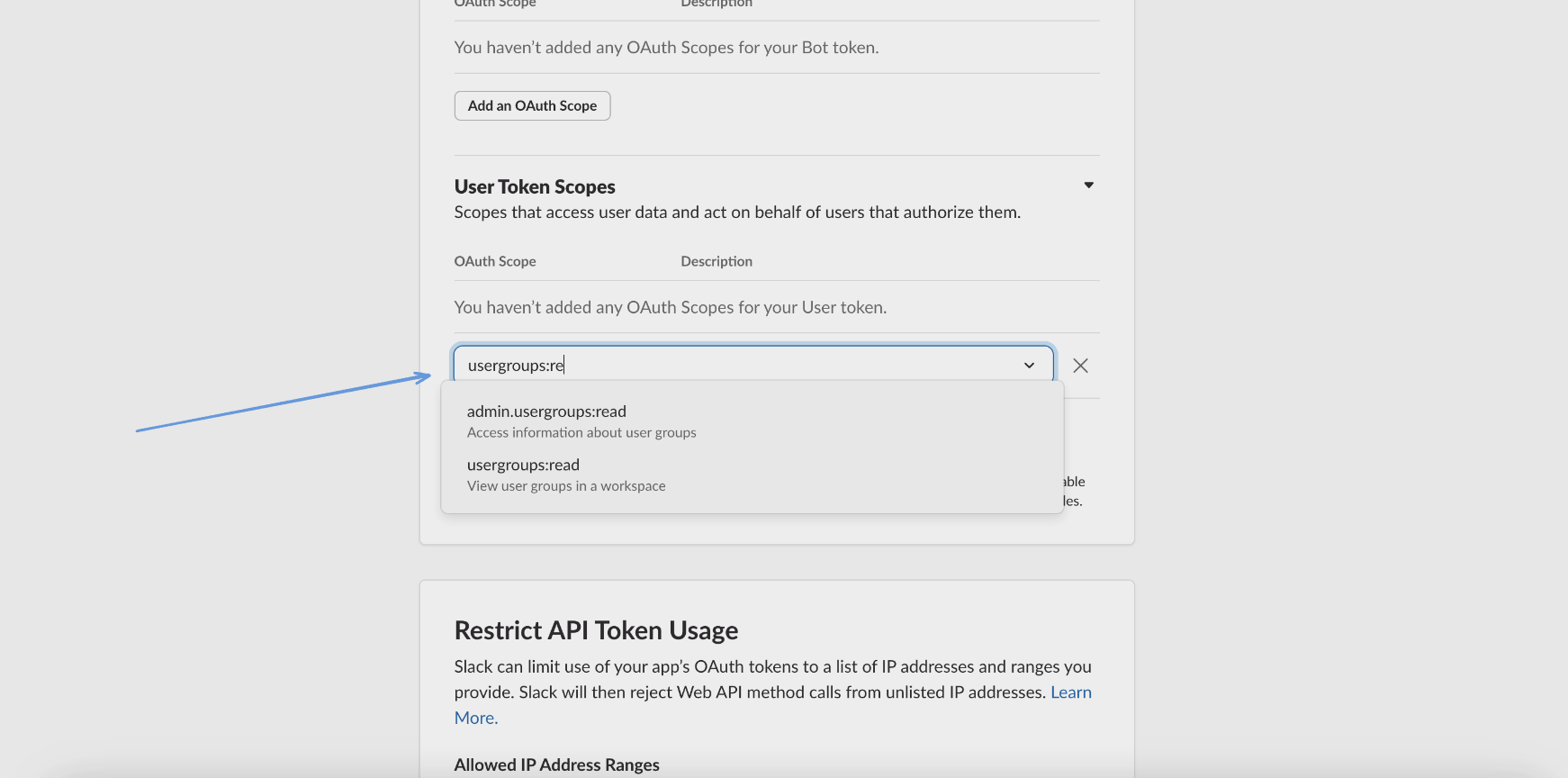
 2. **Add User Token Scopes**
- Scroll down to **Scopes** > **User Token Scopes**
- Click **Add an OAuth Scope**
- Add the `admin` scope - "Administer the workspace"
2. **Add User Token Scopes**
- Scroll down to **Scopes** > **User Token Scopes**
- Click **Add an OAuth Scope**
- Add the `admin` scope - "Administer the workspace"
 ### 3. Install App and Get Token
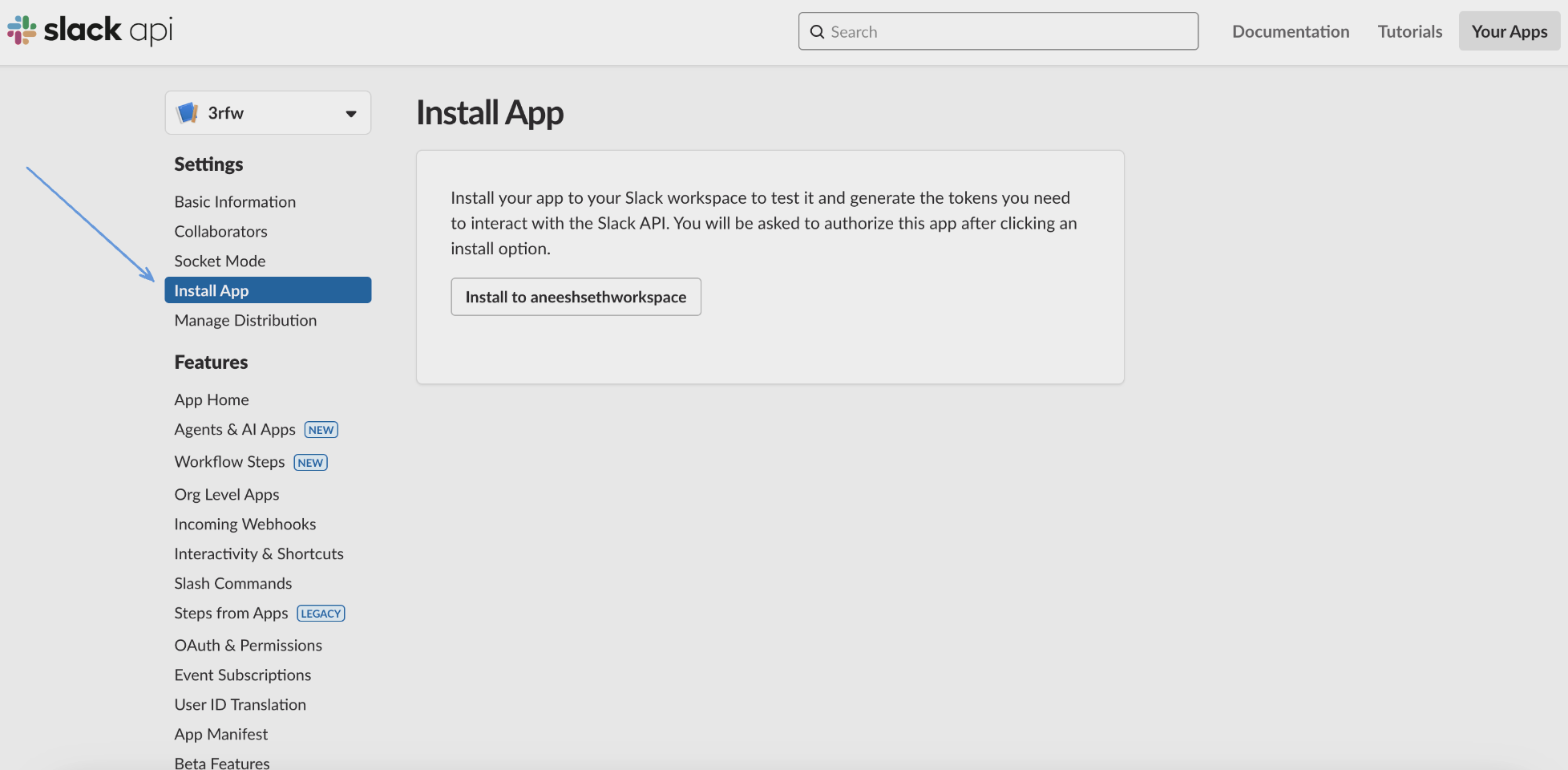
1. **Install to Workspace**
- In the left sidebar click **Install App**
- Click **Install to Workspace** button
### 3. Install App and Get Token
1. **Install to Workspace**
- In the left sidebar click **Install App**
- Click **Install to Workspace** button
 - Click **Allow** when prompted to authorize the app
2. **Copy User OAuth Token**
- After installation, copy the **User OAuth Token**
- This token starts with `xoxp-` and will be used in the configuration
- Store it securely - treat it as a sensitive credential
**Note**: If you modify scopes after installation, reinstall the app for changes to take effect.
## Configuration
### Settings
| Setting | Type | Required | Description |
| ------------------- | ------ | -------- | --------------------------------------------------------------------------------------------------------------------------------------------------- |
| backfill_start_time | string | No | The date to start fetching data from. If not specified, no past records will be fetched. |
| API Rate Limit | object | No | Optional limit on the connector's outbound request rate to the source API. Leave blank to use the connector's default behavior. See [API Rate Limiting](../../../guides/rate-limiting) for the field format, limits, and how to choose a value. |
### Secrets
| Secret | Type | Required | Description |
| ---------------- | ------ | -------- | ----------------------------------------------------------------------------------------------- |
| token | string | Yes | User OAuth Token with `admin` scope from your Slack app configuration (starts with `xoxp-`) |
## Details
Monad tracks access log events incrementally by monitoring timestamp fields (`date_first` and `date_last`). The connector maintains state of the last successfully processed event and only fetches newer events on subsequent runs. On the first run, it performs a full sync of all available access logs based on the backfill start time or all available data if not specified.
### What Data is Collected
The access logs capture:
- **User Identity**: User ID, username
- **Session Information**: First access time, last access time, access count
- **Network Details**: IP address, ISP, user agent
- **Geographic Data**: Country, region
- **Access Patterns**: Frequency and timing of workspace access
## Important Limitations
- **Rate Limits**: Subject to Slack's API [rate limits](https://docs.slack.dev/apis/web-api/rate-limits/) which may affect data collection speed
- **Admin Access Required**: The `admin` scope requires workspace admin or owner permissions
- **Data Retention**: Log availability depends on your Slack plan's data retention policy
- **Aggregated Data**: Access logs are aggregated by Slack and may not show individual login events
## Troubleshooting
Common issues and their solutions:
1. **Authentication failures**
- Verify the OAuth token starts with `xoxp-`
- Ensure the token has the `admin` scope
- Check if the app has been installed to the workspace
- Verify your user account has admin or owner permissions
2. **Missing data**
- Check the backfill_start_time configuration
- Verify that access logging is available for your Slack plan
- Ensure the token hasn't been revoked
- Note that access logs are aggregated and may have a delay
3. **Permission errors**
- The `admin` scope requires workspace admin or owner role
- Reinstall the app if you recently added the scope
## Related Articles
- [Slack Admin API - team.accessLogs](https://api.slack.com/methods/team.accessLogs)
- [Slack OAuth Scopes](https://api.slack.com/scopes)
- [Creating Slack Apps](https://api.slack.com/start/overview)
## Sample Record
```json
{
"user_id": "U12345",
"username": "Jane Smith",
"date_first": 1744456299,
"date_last": 1744459899,
"count": 15,
"ip": "203.0.113.45",
"user_agent": "SlackWeb Mozilla/5.0 (Macintosh; Intel Mac OS X 10_15_7) AppleWebKit/537.36 (KHTML, like Gecko) Chrome/121.0.0.0 Safari/537.36",
"isp": "Comcast",
"country": "US",
"region": "CA"
}
```
- Click **Allow** when prompted to authorize the app
2. **Copy User OAuth Token**
- After installation, copy the **User OAuth Token**
- This token starts with `xoxp-` and will be used in the configuration
- Store it securely - treat it as a sensitive credential
**Note**: If you modify scopes after installation, reinstall the app for changes to take effect.
## Configuration
### Settings
| Setting | Type | Required | Description |
| ------------------- | ------ | -------- | --------------------------------------------------------------------------------------------------------------------------------------------------- |
| backfill_start_time | string | No | The date to start fetching data from. If not specified, no past records will be fetched. |
| API Rate Limit | object | No | Optional limit on the connector's outbound request rate to the source API. Leave blank to use the connector's default behavior. See [API Rate Limiting](../../../guides/rate-limiting) for the field format, limits, and how to choose a value. |
### Secrets
| Secret | Type | Required | Description |
| ---------------- | ------ | -------- | ----------------------------------------------------------------------------------------------- |
| token | string | Yes | User OAuth Token with `admin` scope from your Slack app configuration (starts with `xoxp-`) |
## Details
Monad tracks access log events incrementally by monitoring timestamp fields (`date_first` and `date_last`). The connector maintains state of the last successfully processed event and only fetches newer events on subsequent runs. On the first run, it performs a full sync of all available access logs based on the backfill start time or all available data if not specified.
### What Data is Collected
The access logs capture:
- **User Identity**: User ID, username
- **Session Information**: First access time, last access time, access count
- **Network Details**: IP address, ISP, user agent
- **Geographic Data**: Country, region
- **Access Patterns**: Frequency and timing of workspace access
## Important Limitations
- **Rate Limits**: Subject to Slack's API [rate limits](https://docs.slack.dev/apis/web-api/rate-limits/) which may affect data collection speed
- **Admin Access Required**: The `admin` scope requires workspace admin or owner permissions
- **Data Retention**: Log availability depends on your Slack plan's data retention policy
- **Aggregated Data**: Access logs are aggregated by Slack and may not show individual login events
## Troubleshooting
Common issues and their solutions:
1. **Authentication failures**
- Verify the OAuth token starts with `xoxp-`
- Ensure the token has the `admin` scope
- Check if the app has been installed to the workspace
- Verify your user account has admin or owner permissions
2. **Missing data**
- Check the backfill_start_time configuration
- Verify that access logging is available for your Slack plan
- Ensure the token hasn't been revoked
- Note that access logs are aggregated and may have a delay
3. **Permission errors**
- The `admin` scope requires workspace admin or owner role
- Reinstall the app if you recently added the scope
## Related Articles
- [Slack Admin API - team.accessLogs](https://api.slack.com/methods/team.accessLogs)
- [Slack OAuth Scopes](https://api.slack.com/scopes)
- [Creating Slack Apps](https://api.slack.com/start/overview)
## Sample Record
```json
{
"user_id": "U12345",
"username": "Jane Smith",
"date_first": 1744456299,
"date_last": 1744459899,
"count": 15,
"ip": "203.0.113.45",
"user_agent": "SlackWeb Mozilla/5.0 (Macintosh; Intel Mac OS X 10_15_7) AppleWebKit/537.36 (KHTML, like Gecko) Chrome/121.0.0.0 Safari/537.36",
"isp": "Comcast",
"country": "US",
"region": "CA"
}
```