# Salesforce Users
Cron to periodically fetch users from Salesforce via the Salesforce REST API.
## Overview
The Salesforce Users input allows you to periodically fetch users from Salesforce via the Salesforce REST API.
### Key Features
- **Enrichments**: Enrich Salesforce event data with user details such as name, email, role, and profile information
## Prerequisites
Before configuring the Salesforce PubSub input, ensure you have:
1. **Salesforce Account**: Access to a Salesforce organization
3. **Administrative Access**: Permissions to create External Client Apps and manage OAuth settings
## Setup Instructions
### Step 1: Creating a Salesforce External Client App
 1. Log in to your Salesforce account
2. Navigate to **Setup** > **Apps** > **External Client Apps** > **External Client App Manager**
3. Click **New External Client App** on the top right
4. Fill in **Basic Information** section:
- **External Client App Name**: Your App Name. E.g., "Monad Salesforce"
- **Contact Email**: Your email address
- **Distribution State**: Leave as default "local"
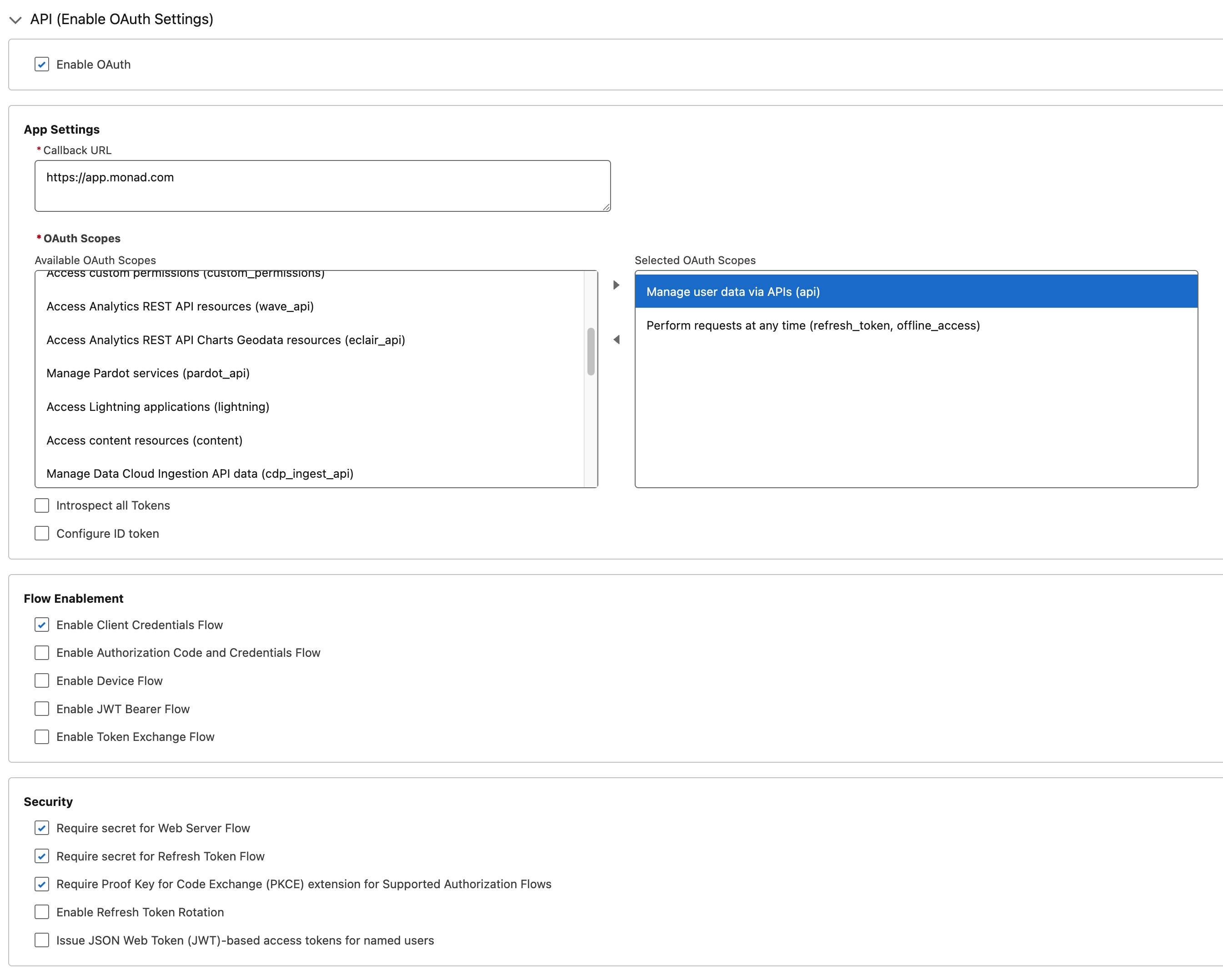
5. In **API (Enable OAuth Settings)** section:
- Check **Enable OAuth**
- **Callback URL**: `https://app.monad.com`
- This can be anything and is not used. It is required by Salesforce.
- **OAuth Scopes**: Add the following scopes:
- `Manage user data via APIs (api)`
- `Perform requests at any time (refresh_token, offline_access)`
6. Enable **Enable Client Credentials Flow**
7. All other settings can be left as default
8. Click **Create**
### Step 2: Configuring OAuth Policies
1. Log in to your Salesforce account
2. Navigate to **Setup** > **Apps** > **External Client Apps** > **External Client App Manager**
3. Click **New External Client App** on the top right
4. Fill in **Basic Information** section:
- **External Client App Name**: Your App Name. E.g., "Monad Salesforce"
- **Contact Email**: Your email address
- **Distribution State**: Leave as default "local"
5. In **API (Enable OAuth Settings)** section:
- Check **Enable OAuth**
- **Callback URL**: `https://app.monad.com`
- This can be anything and is not used. It is required by Salesforce.
- **OAuth Scopes**: Add the following scopes:
- `Manage user data via APIs (api)`
- `Perform requests at any time (refresh_token, offline_access)`
6. Enable **Enable Client Credentials Flow**
7. All other settings can be left as default
8. Click **Create**
### Step 2: Configuring OAuth Policies
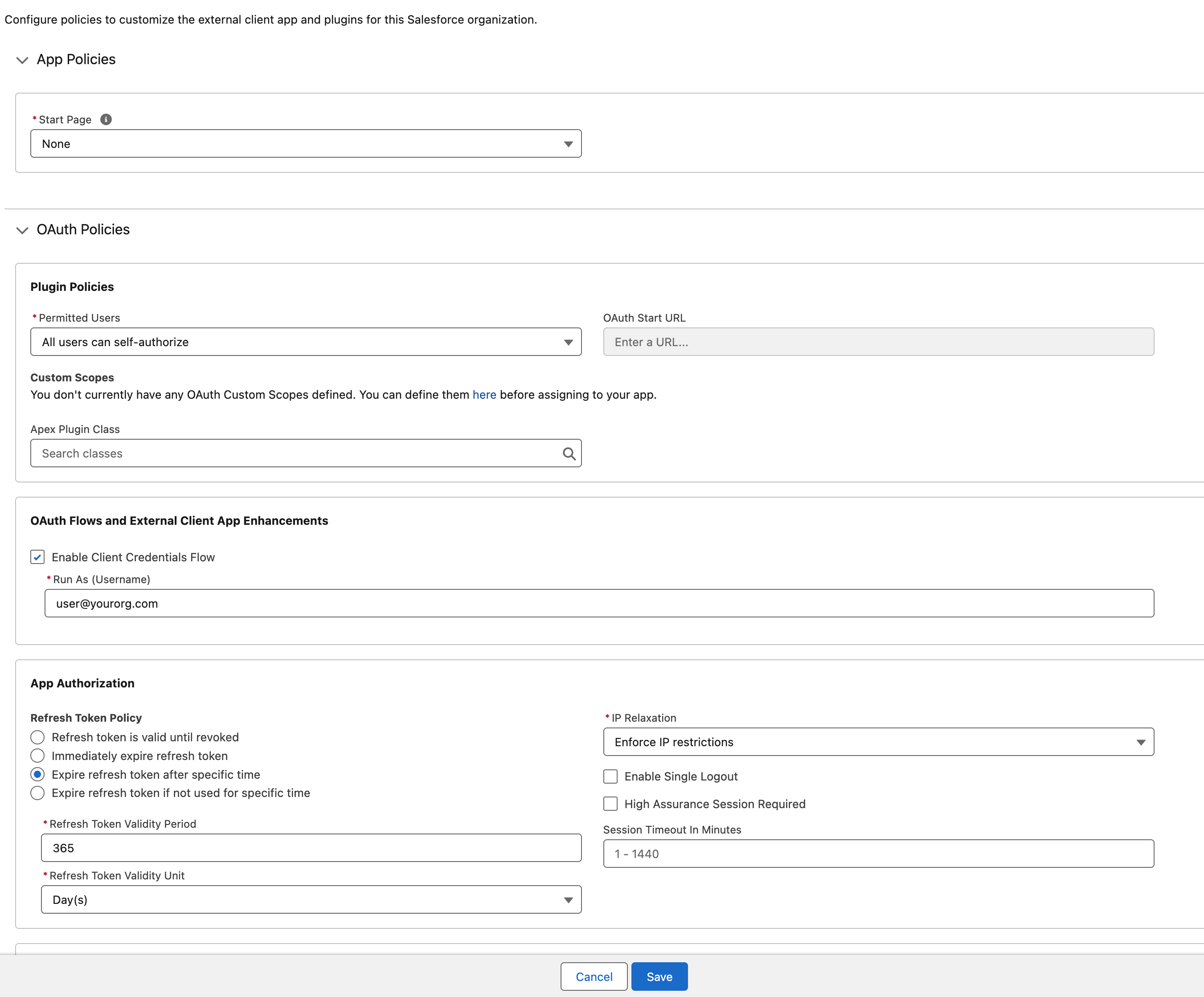 1. After creating the app, you will be redirected to the app's detail page
2. Click **Edit** on the top right
3. In the **OAuth Policies** section:
- Enable **Enable Client Credentials Flow**
- Set **Run As** to an appropriate user with access to the PubSub channel
4. All other settings can be left as default
5. Click **Save**
### Step 3: Retrieving Client Credentials
1. From the new External Client App's detail page, navigate to **Settings** > **OAuth Settings**
2. Click **Consumer Key and Secret**
- Verification may be required before viewing the secrets
3. Copy the **Consumer Key** and **Consumer Secret**.
- These will be used as the Client ID and Client Secret in the input configuration.
## Configuration
### Required Settings
| Setting | Type | Description | How to Find |
|---------|------|-------------|-------------|
| **DomainURL** | string | Domain URL for your Salesforce instance | **Setup** > **Company Settings** > **My Domain** → **Current My Domain URL** |
| **OrganizationID** | string | Organization ID for your Salesforce instance | **Setup** > **Company Settings** > **Company Information** → **Salesforce.com Organization ID** |
| **Include Inactive Users** | bool | Include inactive users in the results | |
| **API Rate Limit** | object | Optional limit on the connector's outbound request rate to the source API. Leave blank to use the connector's default behavior. See [API Rate Limiting](../../../guides/rate-limiting) for the field format, limits, and how to choose a value. | - |
### Required Secrets
| Secret | Description |
|-----------|-------------|
| **Client ID** | OAuth Client ID from the External Client App (Consumer Key) |
| **Client Secret** | OAuth Client Secret from the External Client App (Consumer Secret) |
## Technical Details
### API Integration
This input uses the [Salesforce Query Rest API](https://developer.salesforce.com/docs/atlas.en-us.api_rest.meta/api_rest/resources_cdp_query.htm)
to fetch user lists and the [Salesforce sObject API](https://developer.salesforce.com/docs/atlas.en-us.258.0.api_rest.meta/api_rest/resources_sobject_basic_info_get.htm)
to retrieve user details.
### Authentication & Rate Limiting
- **Authentication**: OAuth 2.0 Client Credentials flow
- **Rate Limiting**: Automatically respects Salesforce's API rate limits
1. After creating the app, you will be redirected to the app's detail page
2. Click **Edit** on the top right
3. In the **OAuth Policies** section:
- Enable **Enable Client Credentials Flow**
- Set **Run As** to an appropriate user with access to the PubSub channel
4. All other settings can be left as default
5. Click **Save**
### Step 3: Retrieving Client Credentials
1. From the new External Client App's detail page, navigate to **Settings** > **OAuth Settings**
2. Click **Consumer Key and Secret**
- Verification may be required before viewing the secrets
3. Copy the **Consumer Key** and **Consumer Secret**.
- These will be used as the Client ID and Client Secret in the input configuration.
## Configuration
### Required Settings
| Setting | Type | Description | How to Find |
|---------|------|-------------|-------------|
| **DomainURL** | string | Domain URL for your Salesforce instance | **Setup** > **Company Settings** > **My Domain** → **Current My Domain URL** |
| **OrganizationID** | string | Organization ID for your Salesforce instance | **Setup** > **Company Settings** > **Company Information** → **Salesforce.com Organization ID** |
| **Include Inactive Users** | bool | Include inactive users in the results | |
| **API Rate Limit** | object | Optional limit on the connector's outbound request rate to the source API. Leave blank to use the connector's default behavior. See [API Rate Limiting](../../../guides/rate-limiting) for the field format, limits, and how to choose a value. | - |
### Required Secrets
| Secret | Description |
|-----------|-------------|
| **Client ID** | OAuth Client ID from the External Client App (Consumer Key) |
| **Client Secret** | OAuth Client Secret from the External Client App (Consumer Secret) |
## Technical Details
### API Integration
This input uses the [Salesforce Query Rest API](https://developer.salesforce.com/docs/atlas.en-us.api_rest.meta/api_rest/resources_cdp_query.htm)
to fetch user lists and the [Salesforce sObject API](https://developer.salesforce.com/docs/atlas.en-us.258.0.api_rest.meta/api_rest/resources_sobject_basic_info_get.htm)
to retrieve user details.
### Authentication & Rate Limiting
- **Authentication**: OAuth 2.0 Client Credentials flow
- **Rate Limiting**: Automatically respects Salesforce's API rate limits