Okta SSO Configuration
This guide walks you through configuring Okta as your Single Sign-On (SSO) provider for Monad.
Prerequisites
- Okta administrator access
- Monad organization admin privileges
Step 1: Create a SAML Application in Okta
- Log in to your Okta Admin Console
- Navigate to Applications > Applications
- Click Create App Integration
- Select SAML 2.0 and click Next
General Settings
- App name:
Monad - App logo (optional): Upload your organization's logo
- Click Next
Step 2: Configure SAML Settings
- Navigate to the SSO settings in the side-panel of your Monad Organization
- Click Create New
- Name your connection (Okta) and give it a description (optional)
- Copy the value of Monad SAML SSO URL and paste it into the Okta Single sign-on URL field
- Copy the value of the SAML Entity ID and paste it into the Okta Audience URI (SP Entity ID) field
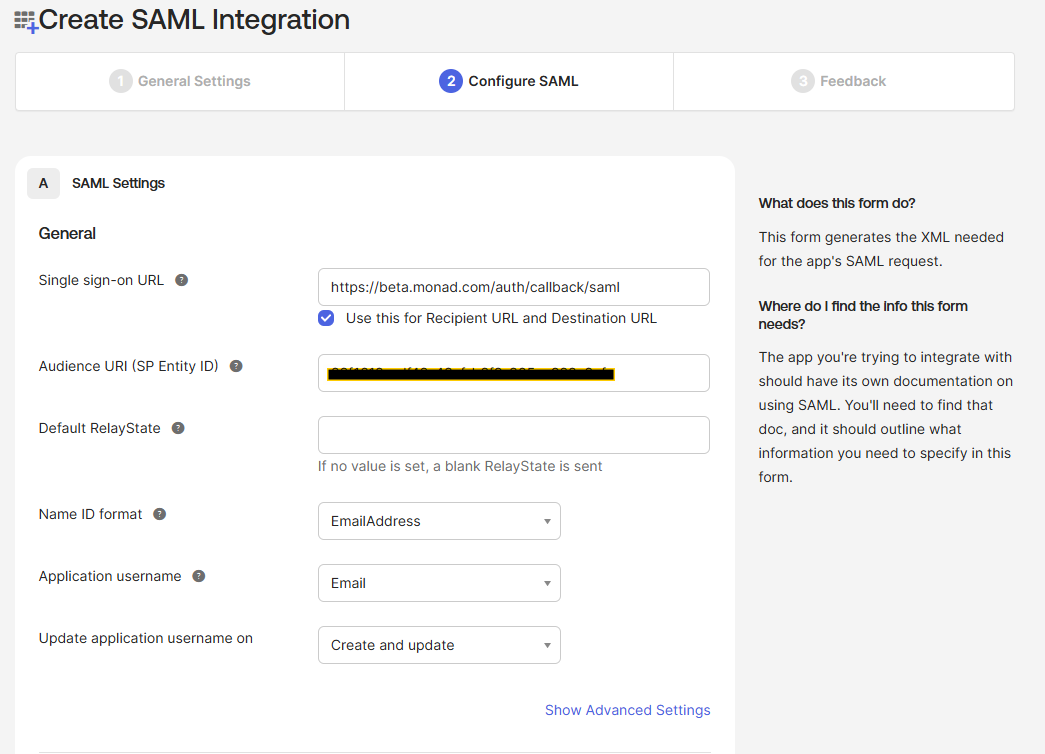
- Default Relay State (optional): Leave blank
- Name ID format:
EmailAddress - Application username:
Email
- Leave this window open, you'll need to add a value from Okta into your configuration
Step 3: Assign Users (Optional)
- In the Assignments tab of your Monad application
- Click Assign > Assign to People or Assign to Groups
- Select the users or groups that should have access to Monad
- Click Assign and Save and Go Back
Step 4: Configure Monad
- Navigate to the Sign On tab in your Okta application
- Copy the Metadata URL value and paste it into the SAML Metadata URL in the Monad Application.
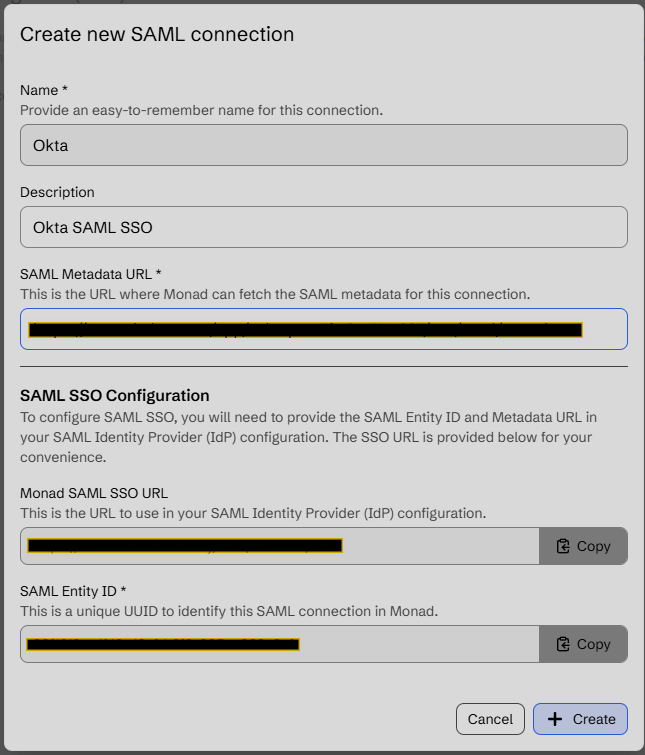
- Click Create
Testing Your Configuration
- Open your Okta Dashboard and click the Monad Application you just created (Make sure to assign it to yourself if you didn't do this before)
You should be redirected to the Monad application and signed in automatically
Troubleshooting
Common Issues
Users can't access Monad after SSO login
- Verify user assignments in Okta
- Check that email addresses match between Okta and Monad
SSO redirect fails
- Confirm the Single sign-on URL is correct
- Verify the Audience URI matches your Monad configuration
Authentication errors
- Verify attribute mappings are configured correctly